Getting started on Brethreign: your first ten minutes
Sign up, set up your profile and Brethren Card, find people and rooms, and take your first breath. A step-by-step guide for new members.
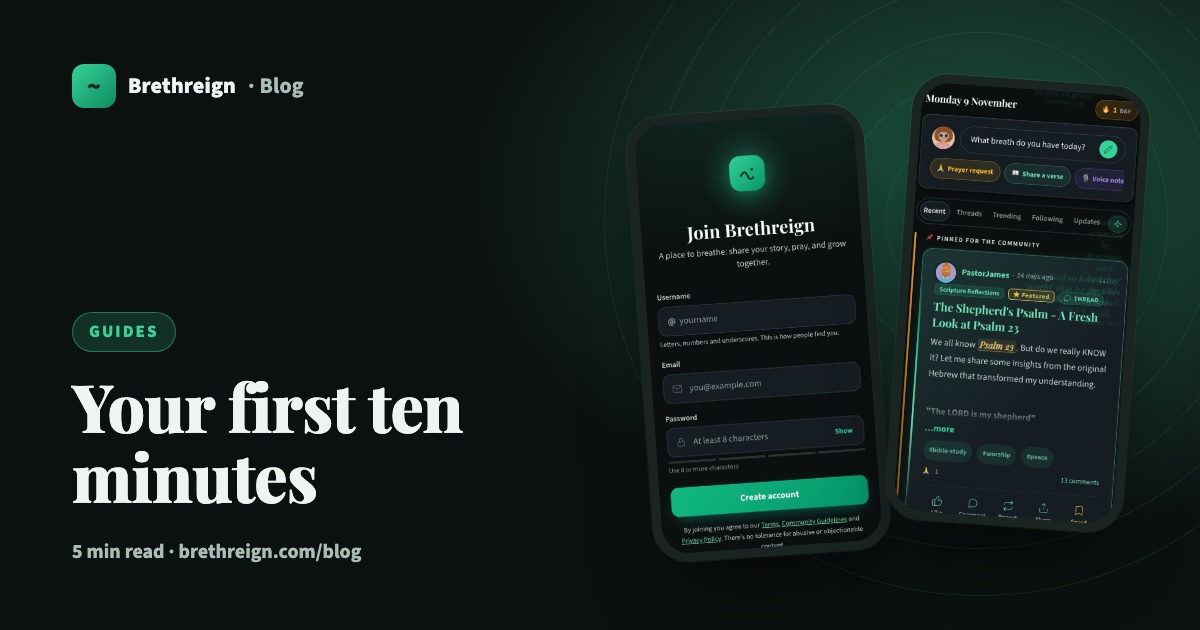
You’ve found Brethreign and you’d like to settle in. This guide walks you through your first ten minutes: creating your account, setting up your profile, finding people and rooms, and sharing your first post. By the end, Brethreign will feel like yours.
1. Create your account
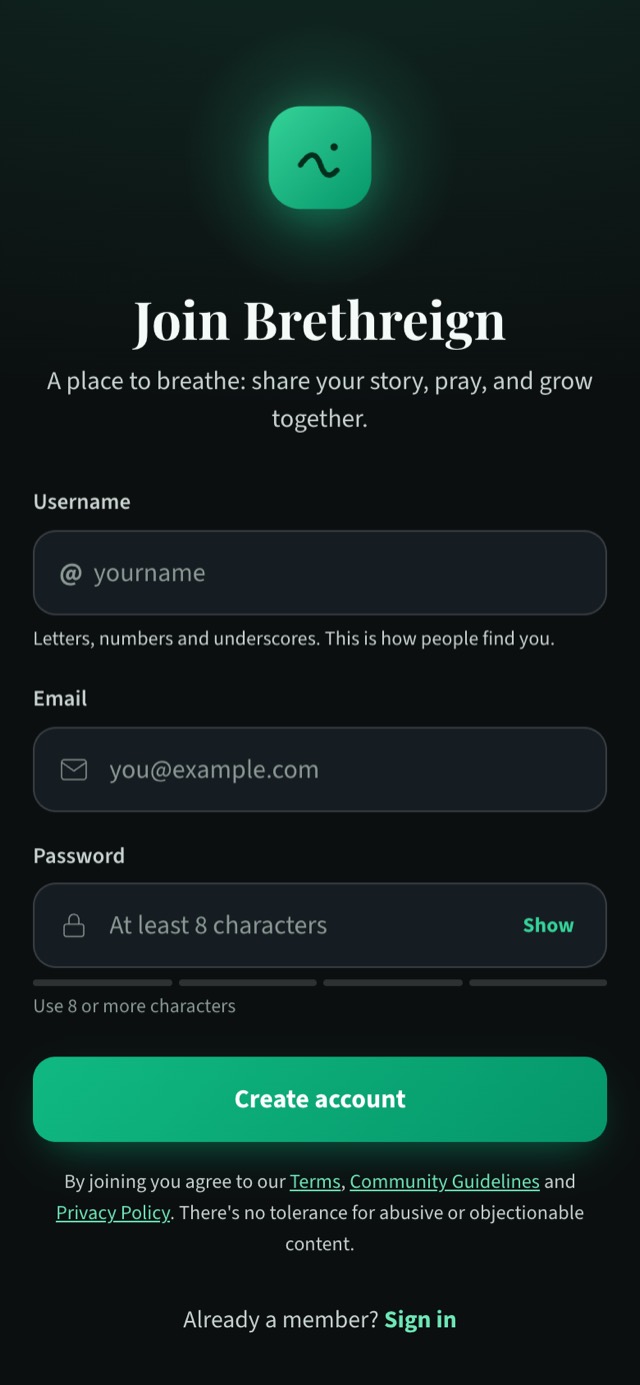
- Open the sign-up page. Go to brethreign.com/users/sign_up on your phone or computer.
- Choose a username. Letters, numbers and underscores. This is how people find you, so pick something you’re happy for your church friends to see.
- Add your email and a password. Use at least 8 characters.
- Tap Create account. If you’d rather not make a new password, sign up with your Google account instead.
Joining is free, and every feature in this guide is free too.
2. Add a photo and a short bio
A face and a few words help people recognise you and feel at ease saying hello.
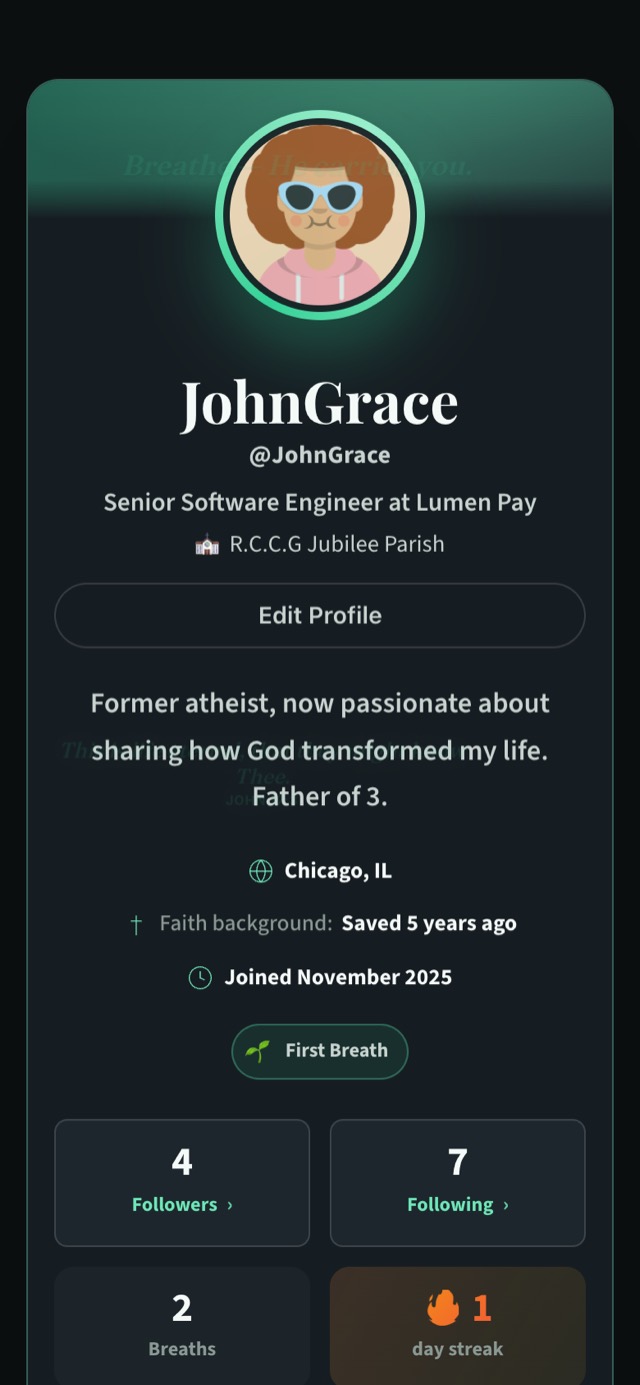
- Open your profile. Tap your photo or go to Profile, then tap Edit Profile.
- Add a profile photo. A clear photo of your face works best.
- Write a short bio. A line or two is plenty: what you do, where you worship, or a sentence about your walk with God.
- Fill in your city and faith background if you like. These show on your profile and help people with something in common find you.
3. Complete your Brethren Card
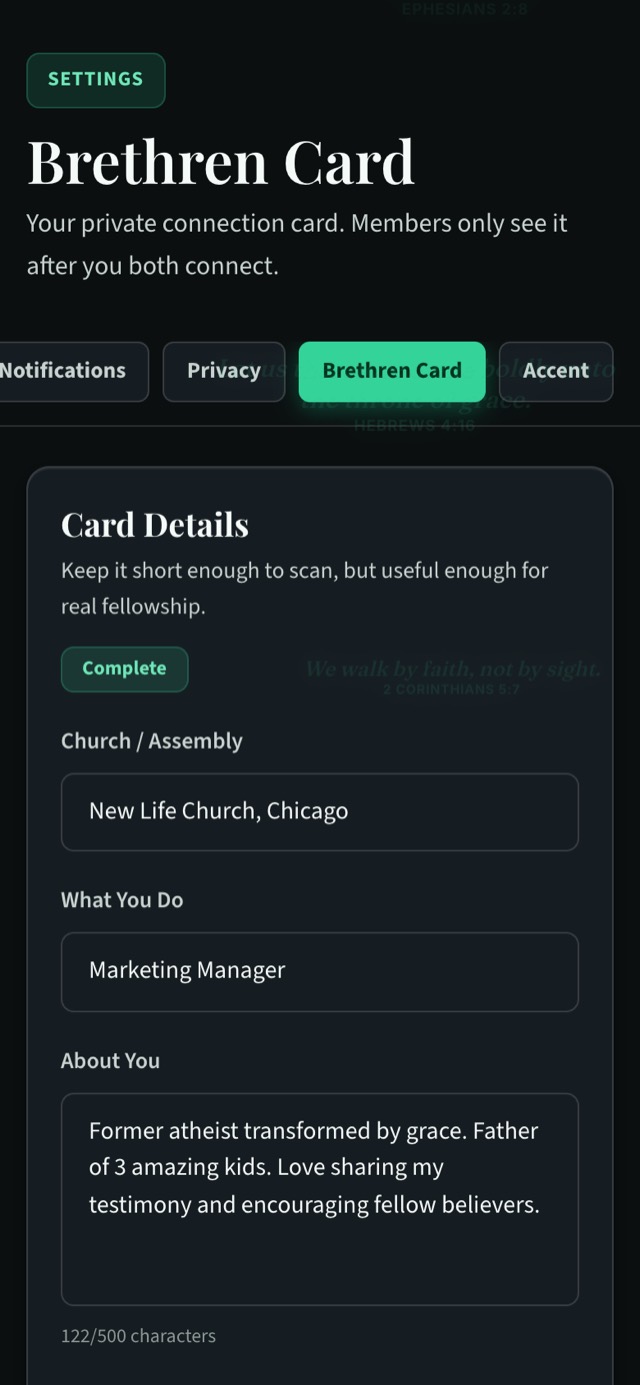
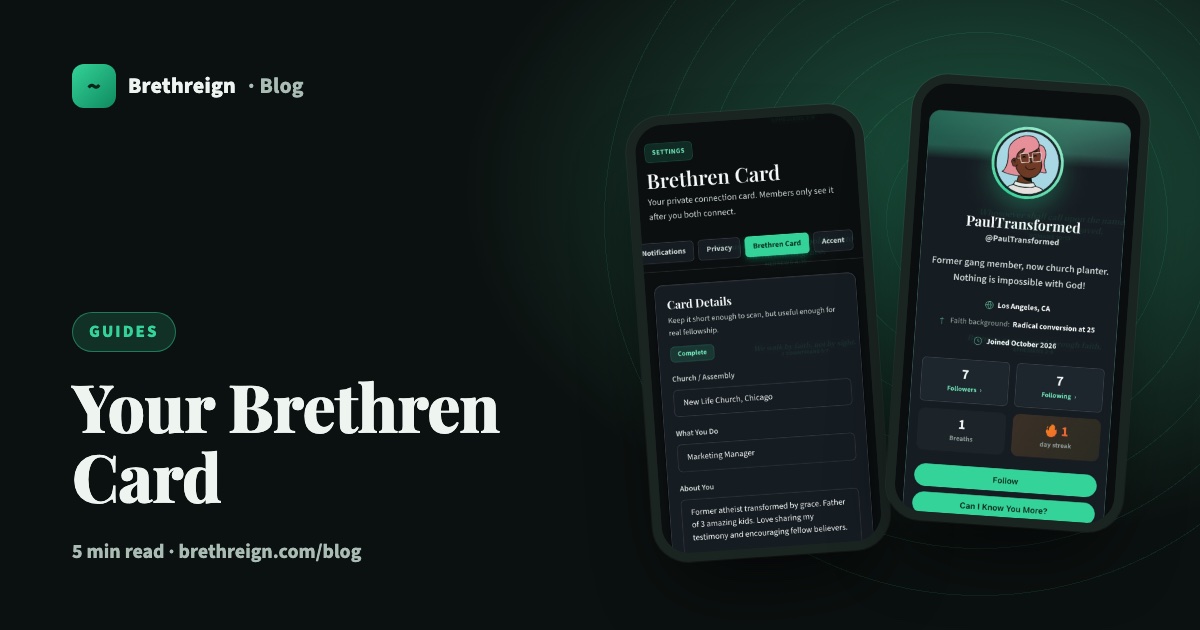
Your Brethren Card is a private card for the people you connect with. It holds your church or assembly, what you do, a short “about you”, and, if you choose, your WhatsApp number and email. Only your connections ever see it.
You need a complete card before you can send connection requests, so it’s worth doing now.
- Open Settings → Brethren Card. Or go straight to /settings/brethren_card/edit.
- Fill in Church / Assembly, What You Do and About You.
- Add contact details only if you’re comfortable. Your WhatsApp number and email are optional. Share only what you’d happily give a new friend from church.
- Save. You’ll see a green Complete badge.
4. Follow a few people and join some rooms
Your feed comes alive once you follow people and join rooms.
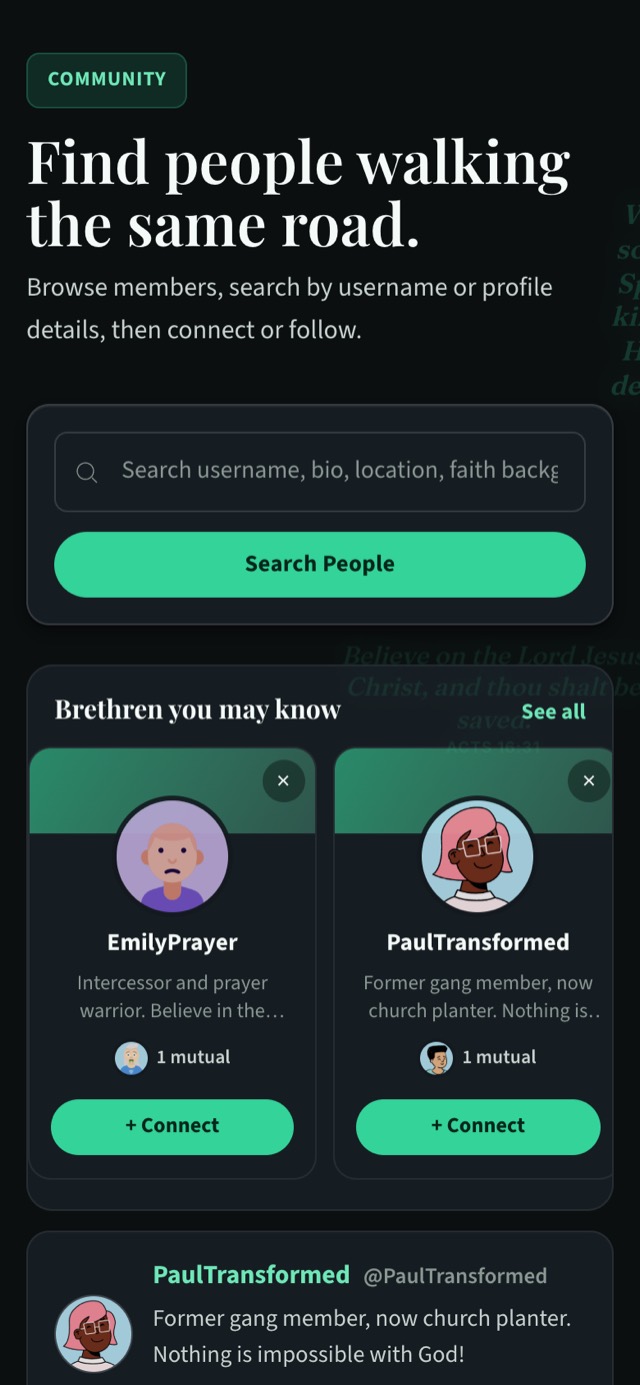
- Visit the People page. Search by username, bio, location or faith background. Each person has Follow and Connect buttons.
- Look at “Brethren you may know”. These suggestions come from your church, your connections, your work, your city and your rooms. Tap See all for the full list, or tap × to dismiss someone.
- Follow a handful of people. Following means you’ll see their breaths in your Following tab.
- Join two or three rooms. Go to /rooms and pick a few that fit your life: Prayer Requests, Bible Study, Young Adults, Parents Room, Brethren in Tech, Book Club and many more. Tap Join Room.
5. Take your first breath
- Go to the feed. At the top you’ll see today’s date and the question “What breath do you have today?”
- Tap the box. The composer opens.
- Write a few words. A hello, a verse that’s carried you this week, or something you’re thankful for. You can add a photo, a voice note or a Bible verse too.
- Tap Breathe. That’s it. You’ve also earned your First Breath badge.
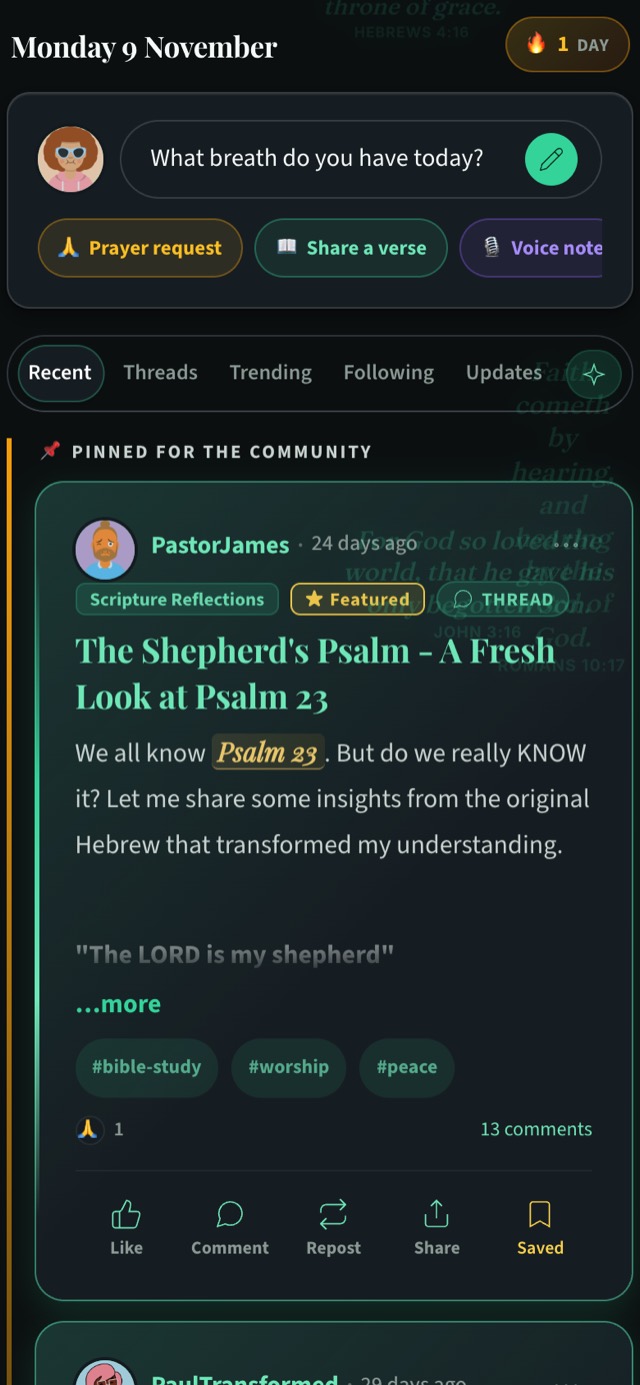
Come back and breathe again tomorrow to start a streak: the number of days in a row you’ve shared.
6. Make it comfortable
A few small choices make Brethreign feel like home.
- Pick a theme. Light or dark, whichever is easier on your eyes.
- Choose an accent colour. Settings has an Accent tab for your own colour.
- Decide about scripture rain. These are the verses that drift softly behind the page. Many members love them. If you’d prefer a plainer screen, you can switch them off.
- Check your privacy. In Settings → Privacy, “Make my profile public” is where you decide who sees your posts.
Keep going
- Take your first breath: everything the composer can do.
- Your Brethren Card and connecting: how “Can I Know You More?” works.
- Praying together on Brethreign: asking for prayer and praying for others.
Read next
 Guides
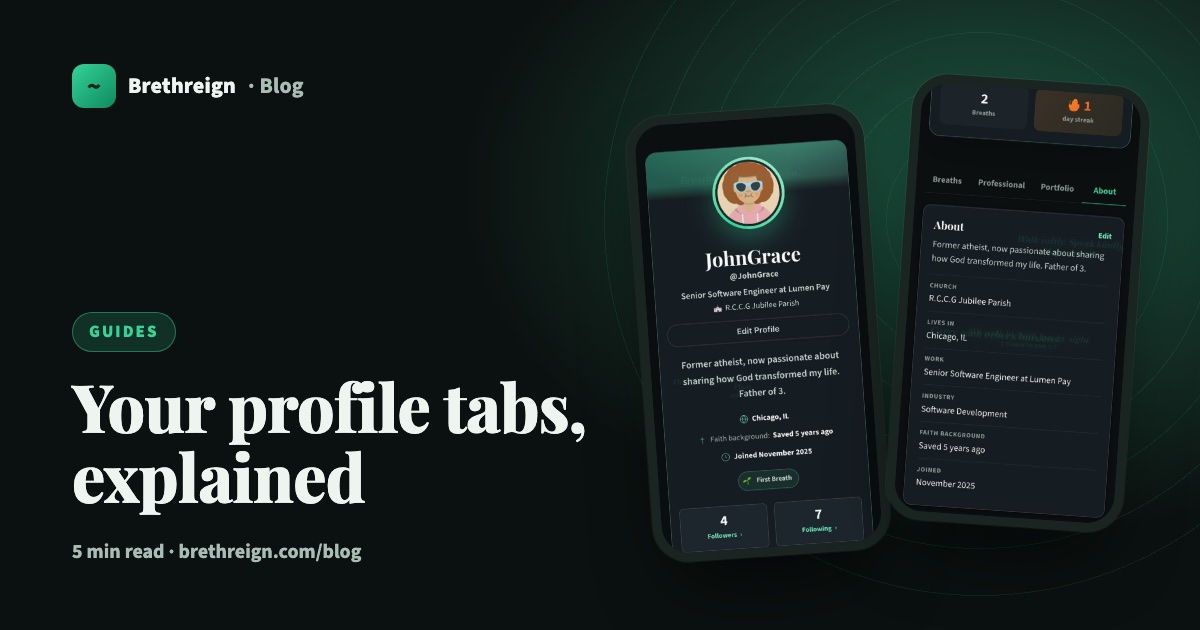
Your profile tabs, explained
A tour of the Breaths, Professional, Portfolio and About tabs on your Brethreign profile: what visitors see, what only you see, and how privacy works.
 Guides
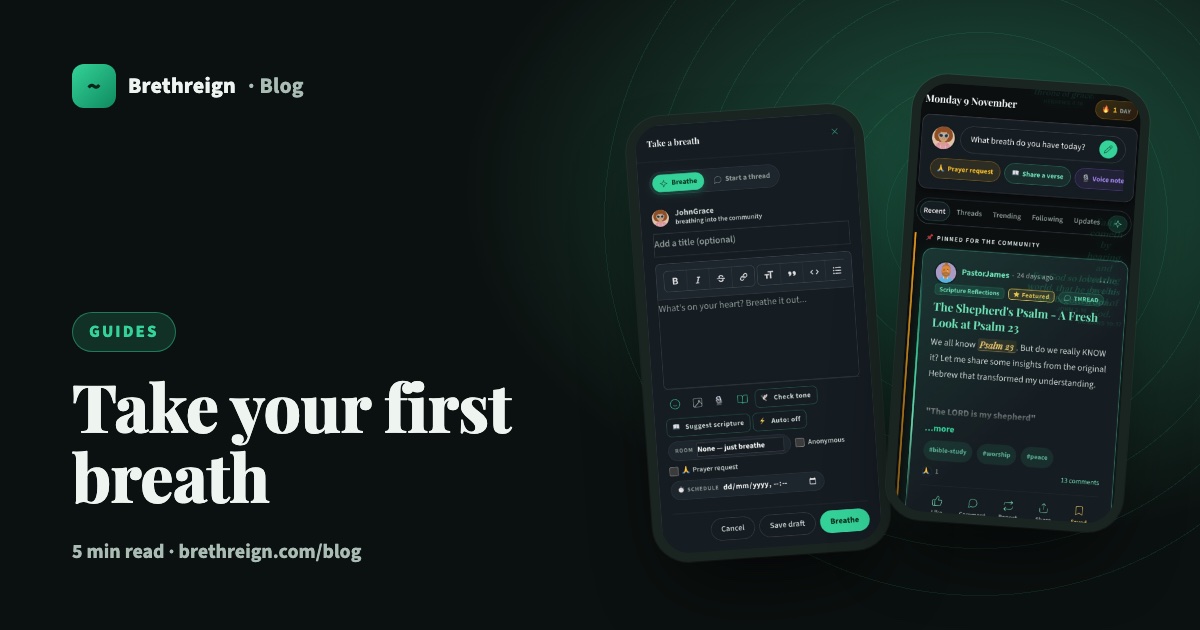
Take your first breath: a guide to posting on Brethreign
Everything the Brethreign composer can do, from photos and voice notes to Check tone, drafts and scheduling, plus how to use the feed.
 Guides
Your Brethren Card and how connecting works
What the Brethren Card is, who can see it, and how 'Can I Know You More?' lets you connect with other believers safely on Brethreign.
Join Brethreign, free
A safe online home for Christians: breathe, pray, read, chat, and grow in your work.