Take your first breath: a guide to posting on Brethreign
Everything the Brethreign composer can do, from photos and voice notes to Check tone, drafts and scheduling, plus how to use the feed.
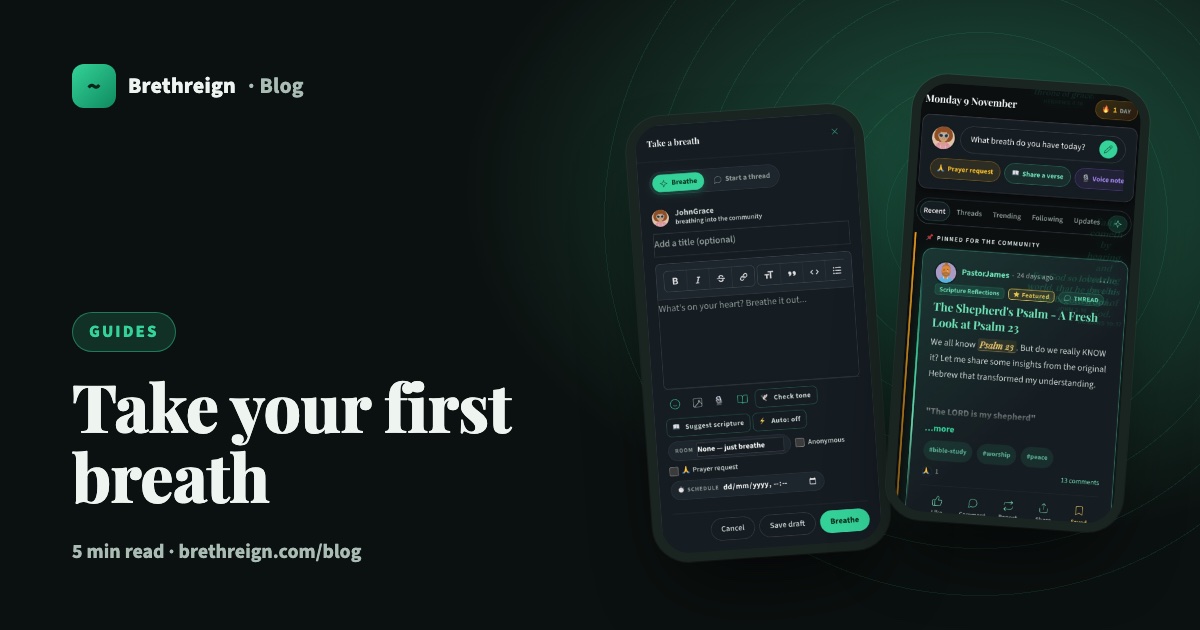
On Brethreign a post is called a breath: something you breathe out to the community. This guide covers every option in the composer, how drafts and scheduling work, and how to find your way around the feed so you can join in with other people’s breaths too.
Start from the Daily Breath
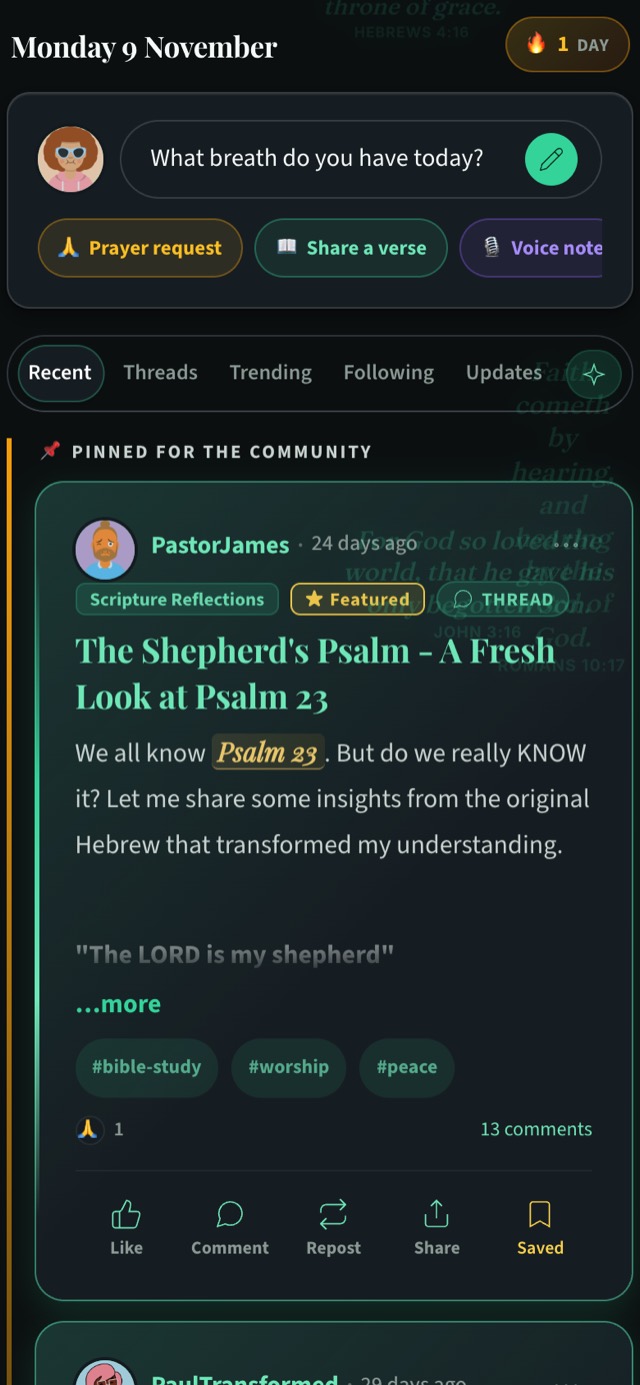
Each time you open the feed you’ll see today’s date and a box with a question: “What breath do you have today?” This is the Daily Breath. Tap it, or the pen beside it, and the composer opens.
Underneath are three quick chips that take you straight to a particular kind of breath: Prayer request, Share a verse and Voice note.
Inside the composer
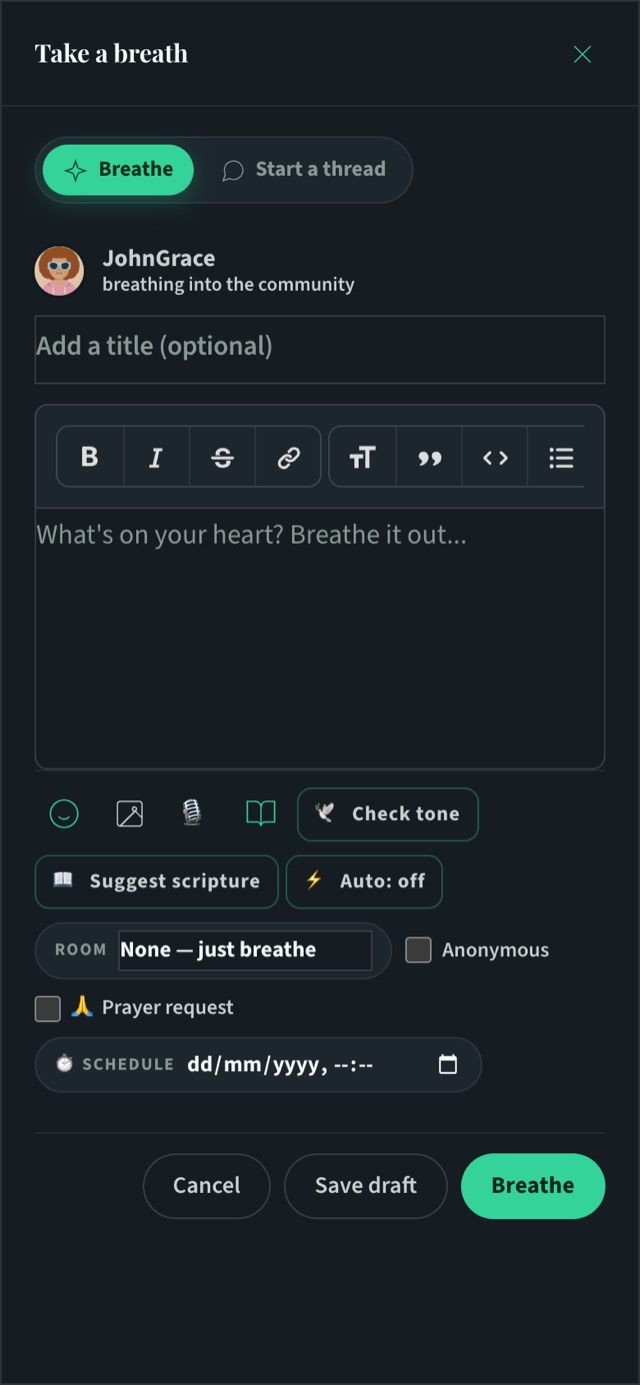
The composer is headed Take a breath. At the top you choose between two kinds of post:
- Breathe is for a normal breath: a thought, a testimony, an encouragement.
- Start a thread is for a longer discussion post, the kind you’d like people to reply to at length.
Here’s what each part does, from top to bottom.
- Add a title (optional). Useful for threads and longer breaths. Short breaths are fine without one.
- Write your breath. The text box says “What’s on your heart? Breathe it out…”. The toolbar gives you bold, italic, strikethrough, links, headings, quotes, code and lists.
- Add emoji. Tap the smiley face.
- Add photos. Tap the picture icon to attach up to 5 photos.
- Record a voice note. Tap the microphone. Sometimes a prayer or a word of encouragement sounds better spoken.
- Add a Bible verse. Tap the book icon to attach a verse to your breath.
- Check tone. A gentle AI check that reads your words and helps you notice if something might land harder than you meant. It’s there to help, and the choice of words stays yours.
- Suggest scripture. Ask Brethreign to suggest a verse to go with what you’ve written.
- Choose a room. Pick one of the rooms, such as Scripture Reflections or Young Adults, or leave it on “None, just breathe” to post to the community feed.
- Post anonymously. Tick Anonymous when you’d rather your name wasn’t attached. This is especially helpful for personal prayer requests.
- Mark it as a prayer request. Tick 🙏 Prayer request so others can join you in prayer.
- Schedule it. Pick a future date and time, and your breath will go out then.
When you’re ready, the buttons at the bottom are:
- Cancel closes the composer.
- Save draft keeps your breath for later.
- Breathe shares it now (or at the time you scheduled).
Let the words of my mouth, and the meditation of my heart, be acceptable in thy sight, O LORD, my strength, and my redeemer. (Psalm 19:14)
Drafts and scheduled breaths
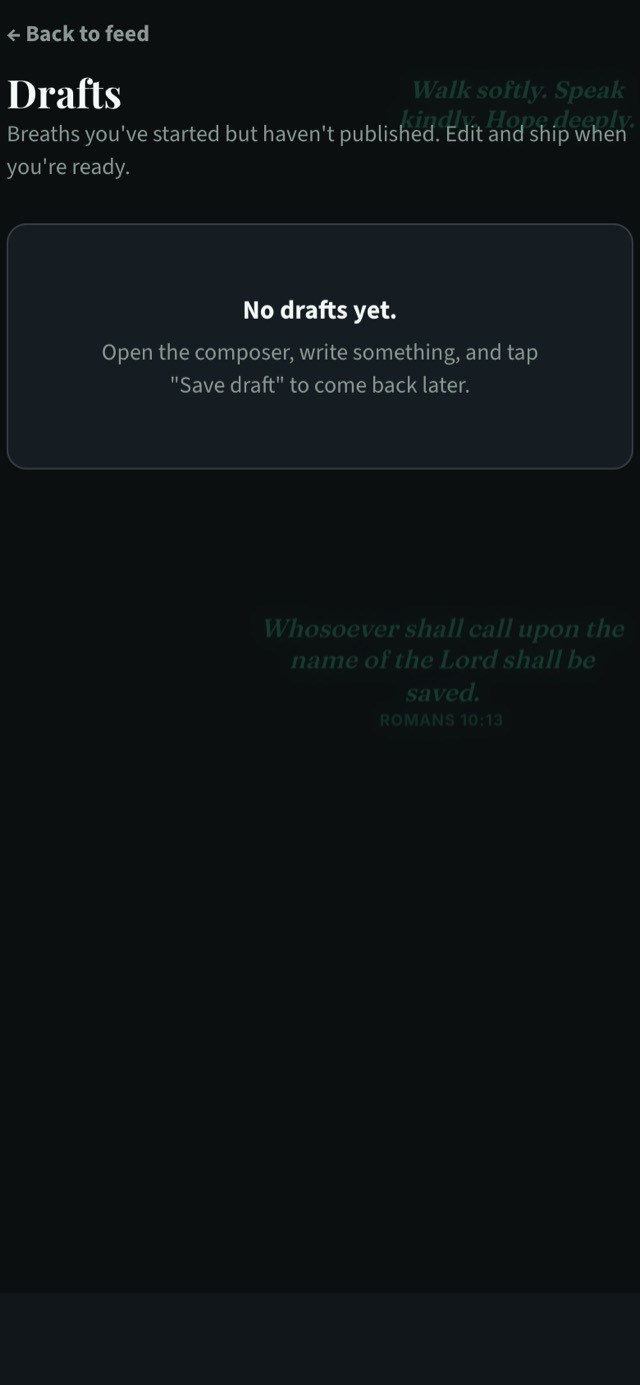
Not every breath is ready the moment you start it. Tap Save draft and it’s kept on your Drafts page, along with any breaths you’ve scheduled.
From there you can open a draft in the draft editor, finish it, and either share it or schedule it for later. Scheduling is handy for a morning verse you want to go out at a set time, or a reminder before a church event.
Finding your way around the feed
Below the Daily Breath are the feed tabs:
- Recent shows the newest breaths from across the community.
- Threads shows longer discussion posts.
- Trending shows what’s trending across the community.
- Following shows breaths from people you follow.
- Updates is filled by Brethreign’s bots with news, sports, remote jobs and free courses. You can choose which bots you see.
Joining in with other people’s breaths
A breath is the start of a conversation. Underneath each one you can:
- React. Go beyond a like with Amen, Praying, Love or any emoji.
- Comment and reply. Leave a comment, or reply to someone else’s.
- Repost it.
- Share it outside Brethreign, for example on WhatsApp.
- Save it to your bookmarks so you can find it again.
Streaks and badges
Breathe on several days in a row and you’ll build a streak, shown with a flame at the top of your feed and on your profile. Badges mark milestones along the way, starting with First Breath. They’re small things, and they can help you build a gentle daily habit of sharing and reflecting.
Keep going
- Getting started on Brethreign: set up your profile and find your people.
- Praying together on Brethreign: what happens after you post a prayer request.
- The Updates tab: news, sports, jobs and courses in your feed.
Read next
 Guides
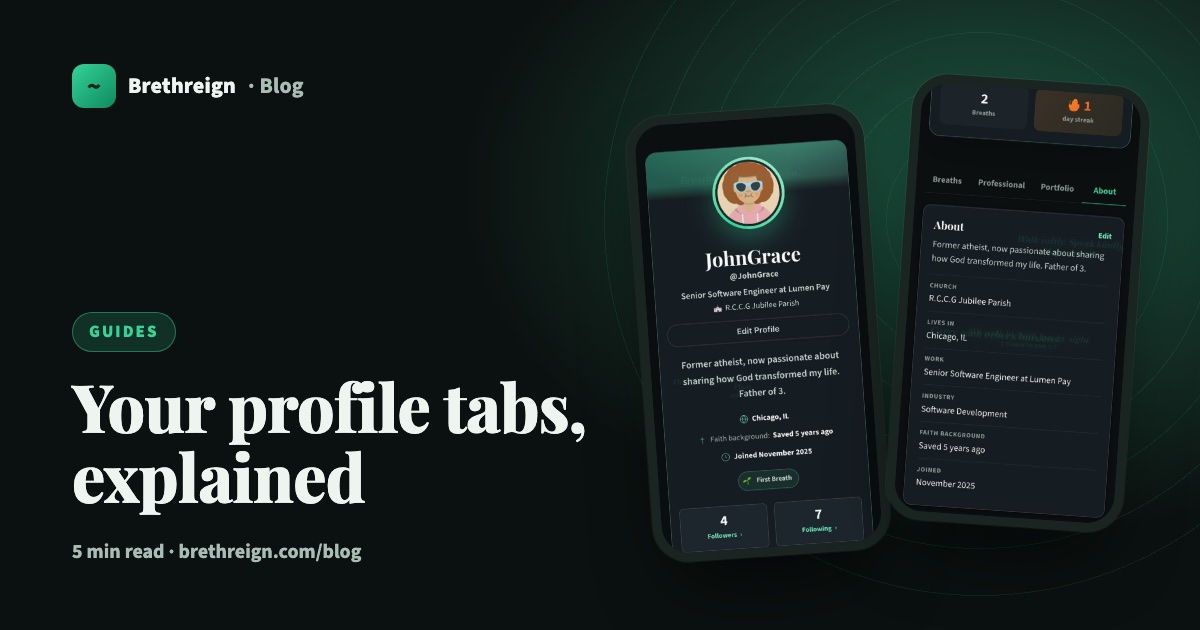
Your profile tabs, explained
A tour of the Breaths, Professional, Portfolio and About tabs on your Brethreign profile: what visitors see, what only you see, and how privacy works.
 Guides
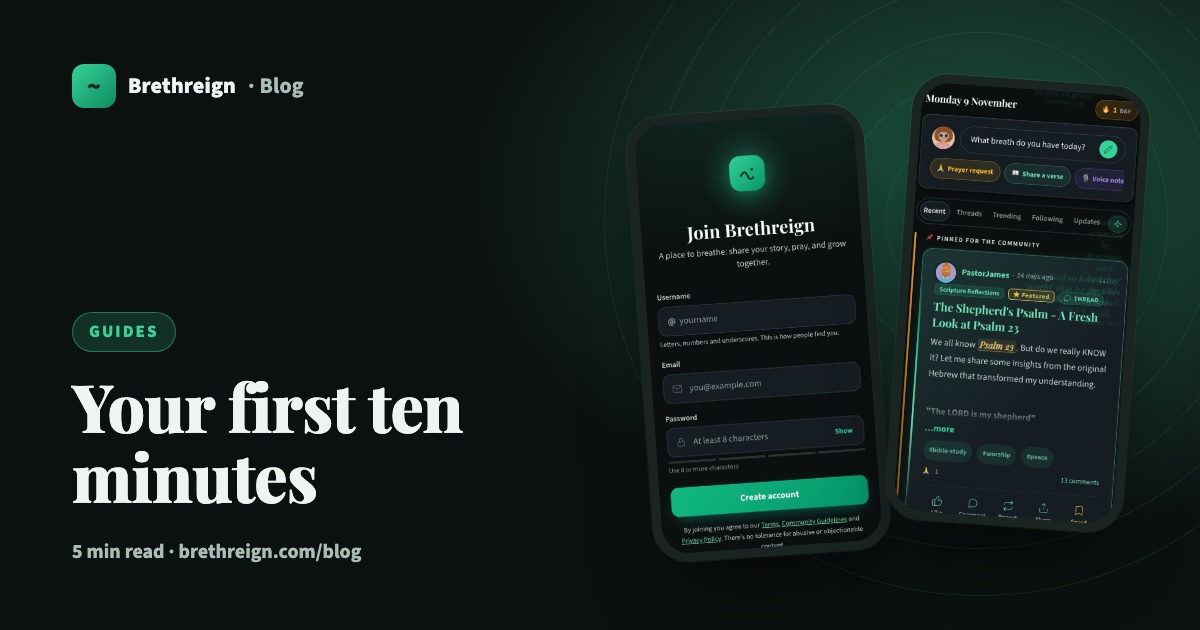
Getting started on Brethreign: your first ten minutes
Sign up, set up your profile and Brethren Card, find people and rooms, and take your first breath. A step-by-step guide for new members.
 Guides
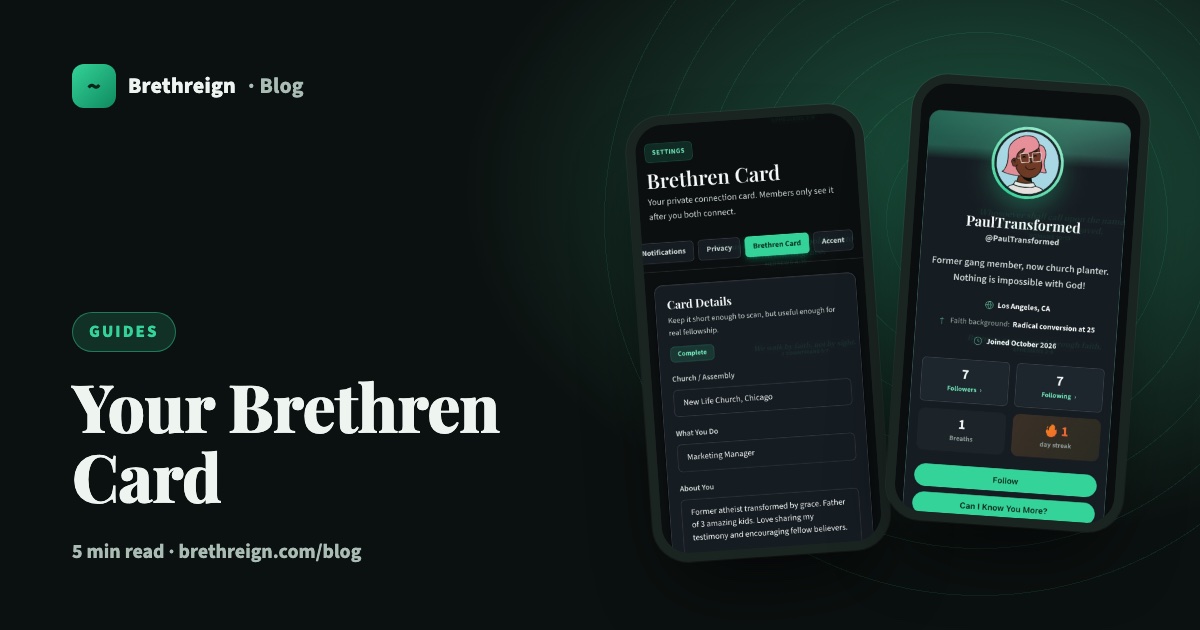
Your Brethren Card and how connecting works
What the Brethren Card is, who can see it, and how 'Can I Know You More?' lets you connect with other believers safely on Brethreign.
Join Brethreign, free
A safe online home for Christians: breathe, pray, read, chat, and grow in your work.