Build a portfolio that gets noticed
How to add work to your Brethreign portfolio, choose the right pieces for any job, tell the story well, and share it with people who need to see it.
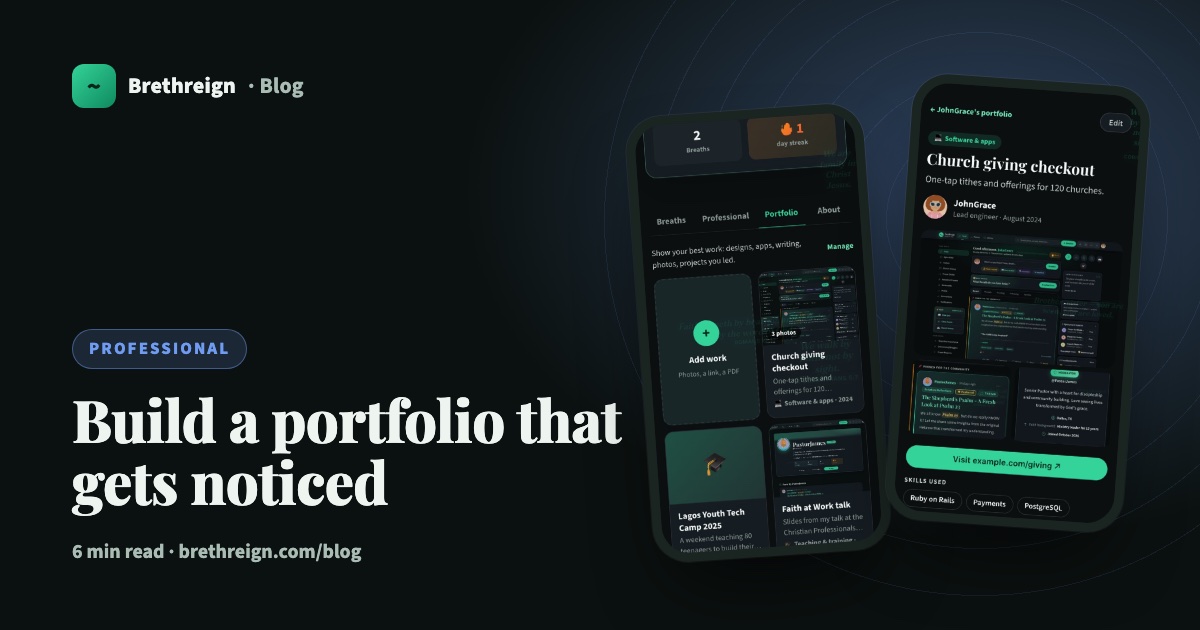
A portfolio shows people what you can do, which is often more convincing than a list of job titles. This guide covers how to add work to your Brethreign portfolio, how to choose pieces whatever your job is, and how to write and photograph each one so it earns a second look.
Portfolios are for every kind of work
It’s easy to think portfolios are only for designers and developers. They aren’t. If you made something, ran something, taught something or fixed something, it can go in.
Look at the “Kind of work” list when you add a piece: it includes Design and Software & apps, and also Teaching & training, Health & care, Architecture & building, Events, Writing, Food, Fashion & beauty, Ministry & outreach, Community & charity and more. A few ideas:
- Nurses and carers: a health outreach you helped run, a training session you led for new staff, a clinic process you improved.
- Teachers: a lesson series, a school project your class completed, a holiday programme you organised.
- Builders and engineers: a finished house, an extension, a repair job with before and after photos.
- Event organisers: a conference, a wedding, a youth camp, with photos and the programme as a PDF.
- Writers: an article, a devotional series, a thesis, with a link or the PDF.
- Church projects: a building fund campaign, a choir recording, an outreach week, a new children’s church.
Add a piece of work
You can have up to 60 pieces. Here’s how to add one.
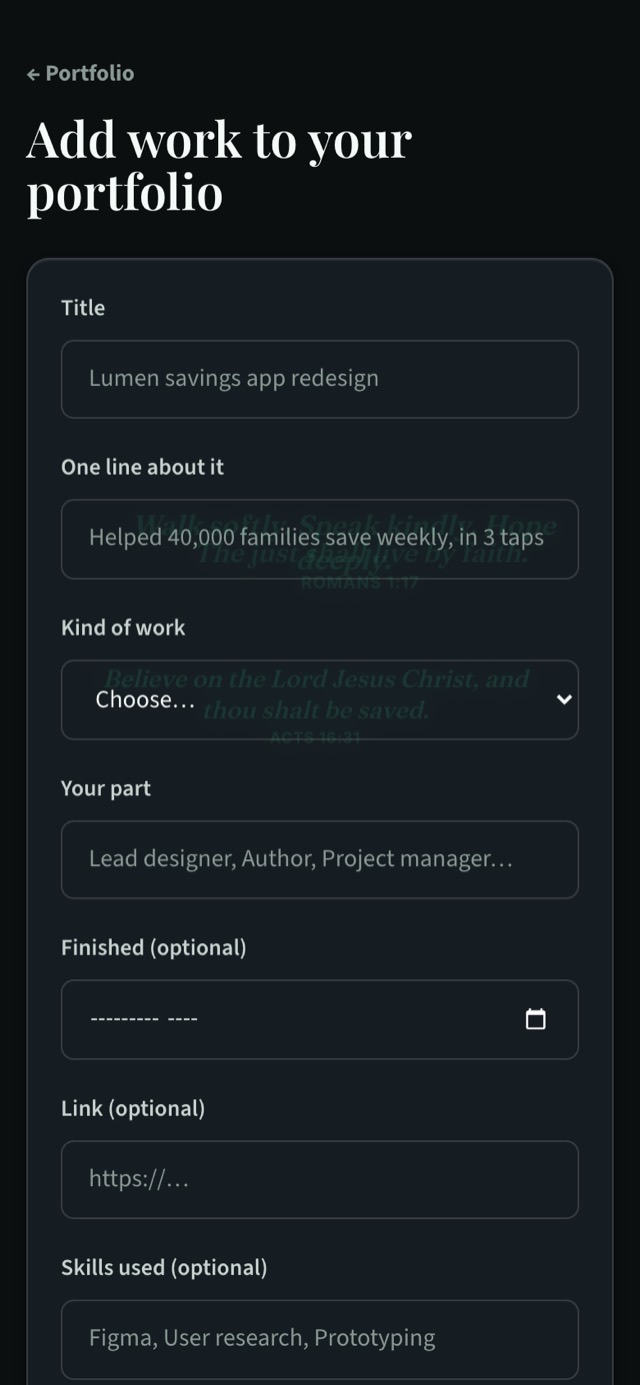
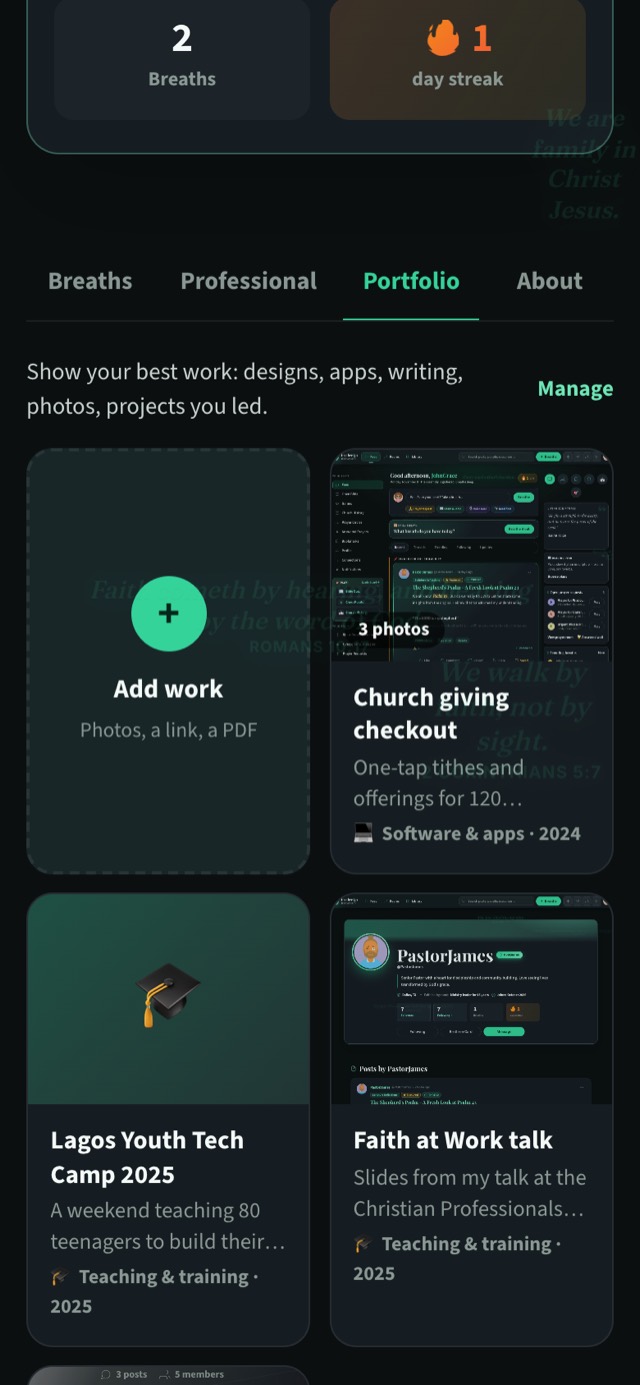
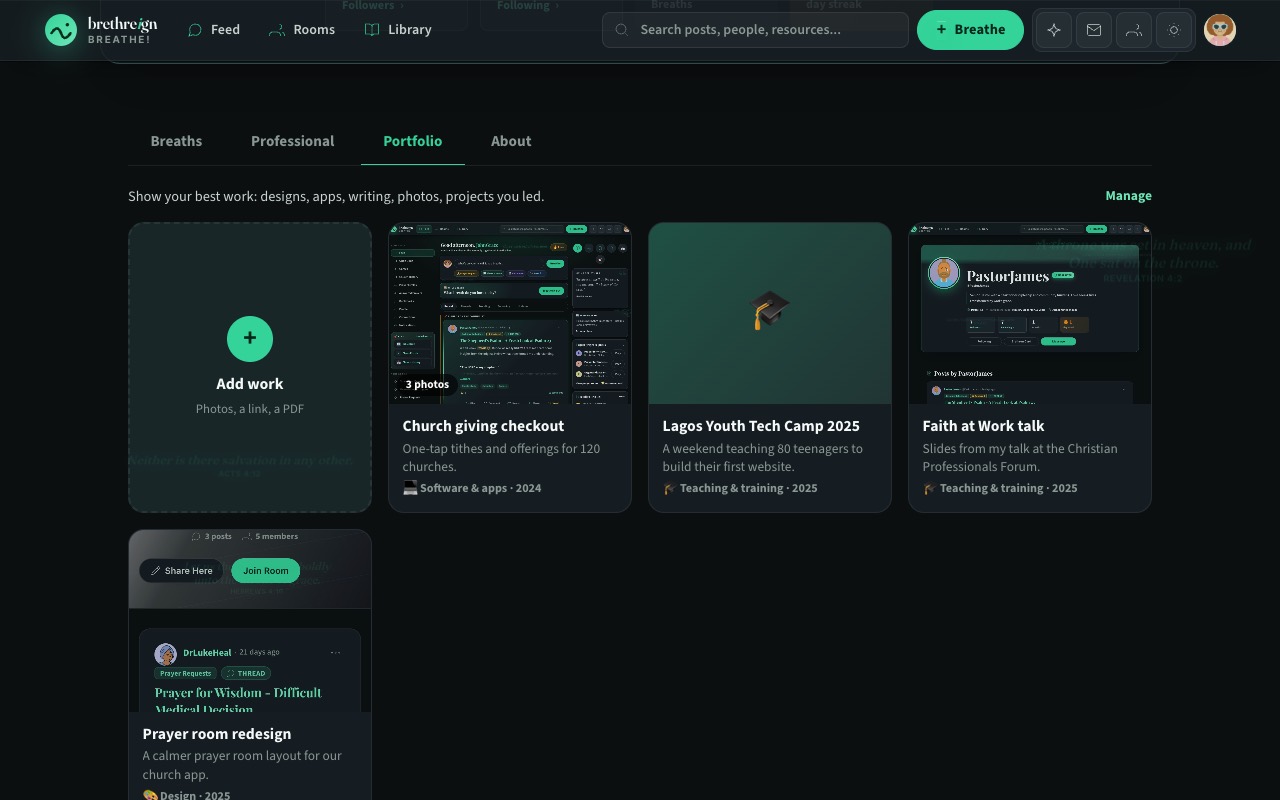
- Open the form. On your profile, go to the Portfolio tab and tap the Add work card. Or open Settings → Portfolio and tap + Add work.
- Give it a title. Name the work plainly: “Lagos Youth Tech Camp 2025” says more than “My project”.
- Write one line about it. This shows on the card, so make it the result: “A weekend teaching 80 teenagers to build their first website.”
- Choose the kind of work. Pick the closest match from the list.
- Say what your part was. For example Lead designer, Author, Site manager or Project manager. People want to know what you did.
- Add the details. The finished month, a link (it must start with https://) and up to 8 skills you used.
- Tell the story. You have up to 3,000 characters. There’s a simple structure below.
- Add photos. Up to 8 photos or screenshots, 10 MB each. The first one is the cover.
- Attach a PDF if you have one. A case study, design deck, article or thesis, up to 10 MB.
- Save the piece. It appears on your Portfolio tab.
Write “The story” in three parts
The story is where people decide whether you’re the person they need. Keep it simple with three short parts.
- The challenge. What was the problem or the need? “Churches told us giving online took too many steps.”
- What you did. Your actions, in plain words. Use “I” for your part and “we” for the team.
- What came of it. The result. Use real numbers only if you know them, and say what changed for the people you served.
Three short paragraphs are plenty. Write the way you’d explain it to a friend after church.
Take photos that help
The first photo is the cover. It appears on your Portfolio tab and in WhatsApp previews when you share the link, so choose it carefully.
- Show the work itself. The finished room, the event hall full of people, the app screen, the printed booklet.
- Use daylight where you can. Shoot near a window or outside, and hold the phone steady.
- Tell a sequence. Before, during and after photos work well for building, catering, design and events.
- Use clear screenshots for apps and websites, without notifications across the top.
- Ask before you include people, especially children. A photo of hands at work or the back of a crowd often tells the story just as well.
Every piece goes through the same AI safety check as the rest of Brethreign. If a piece is flagged, it’s hidden from others and you’re told why. Once you edit it and it passes, it shows again.
Use the PDF for depth
Some work needs more than photos. The optional PDF is the place for a fuller case study, a design deck, a published article, an event programme or a thesis. People can open it from the piece’s page. Keep it under 10 MB.
What each piece looks like
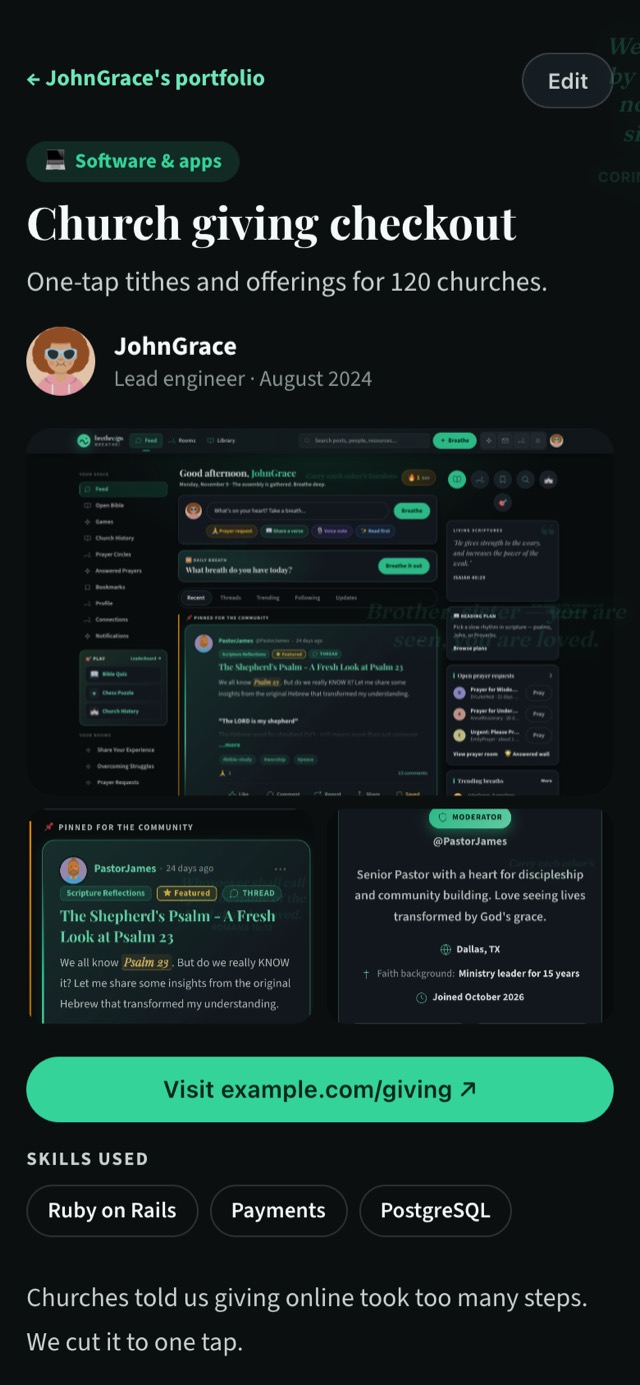
Every piece has its own page: the kind of work at the top, the title and one line, your name with your part and the month, a large lead photo with thumbnails that open full screen, a “Visit …” button for your link, the PDF, your skills, and previous/next to move through your work.
Put your best work first
Order matters, because the first pieces are the ones people see first.
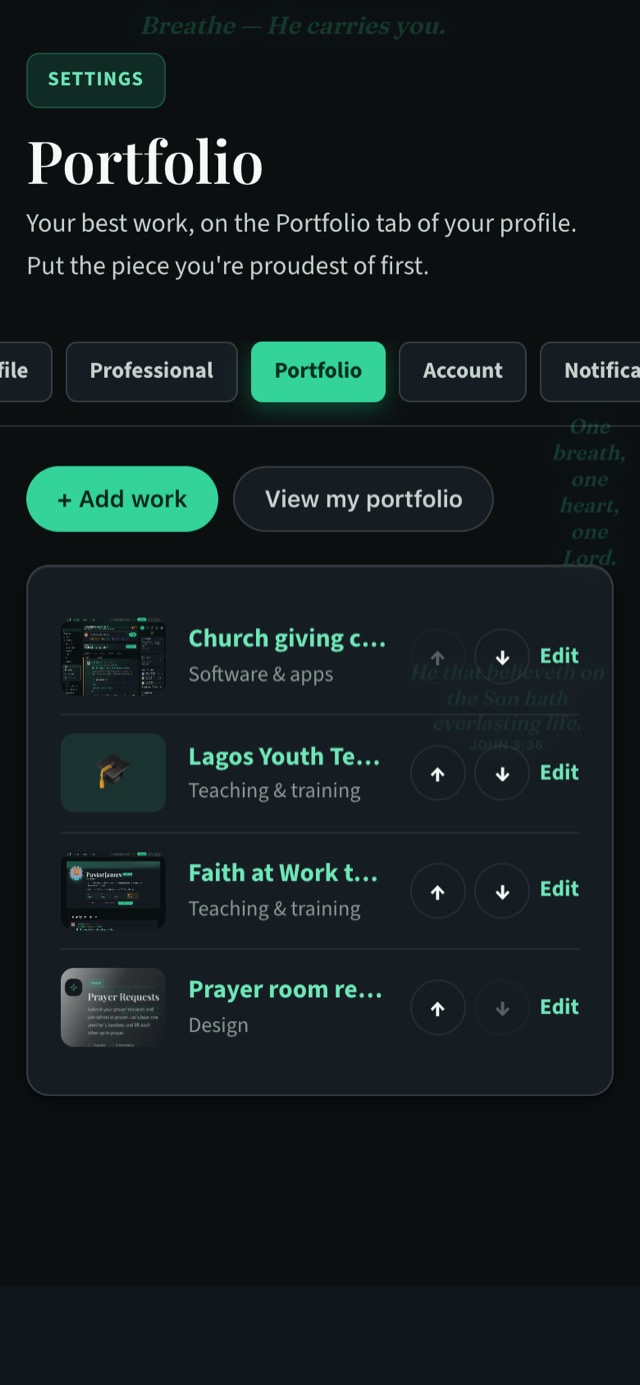
- Open Settings → Portfolio. Or tap Manage on your Portfolio tab.
- Use the arrows. Tap ↑ or ↓ beside a piece to move it.
- Lead with your strongest piece. The page itself says it: “Put the piece you’re proudest of first.”
Share your work
Each piece has its own link. Share it in a WhatsApp chat, a job application or a message to someone who asked about your work; the cover photo shows in the preview. You can also share your profile and point people to the Portfolio tab.
“Let your light so shine before men, that they may see your good works, and glorify your Father which is in heaven.” (Matthew 5:16)
Keep going
Read next
 Professional
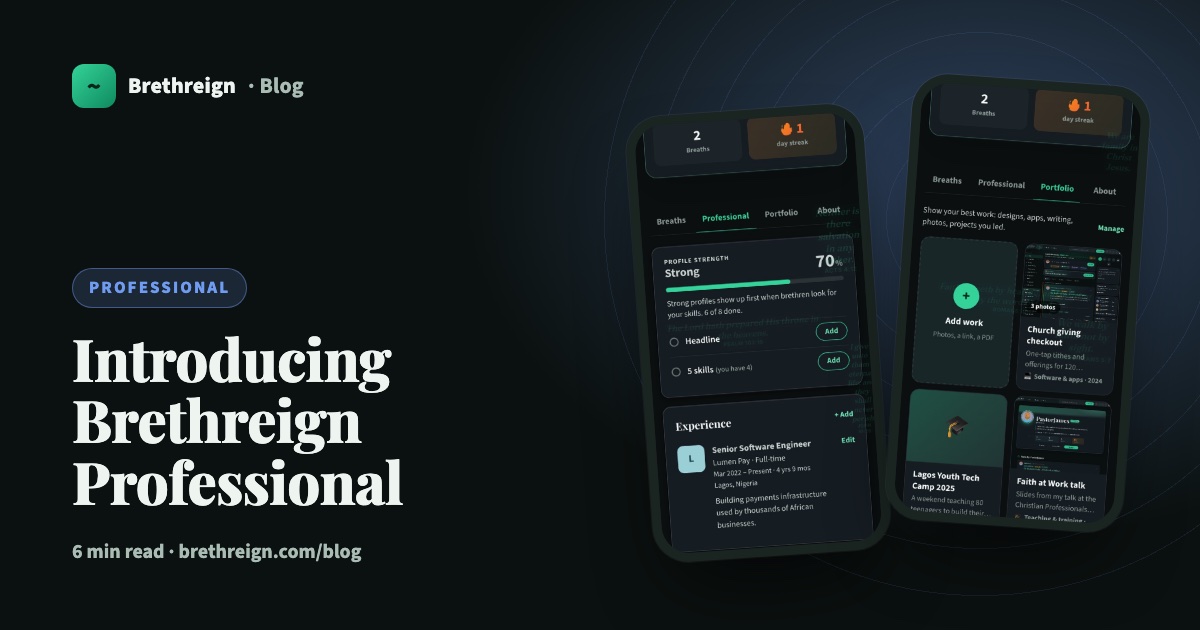
Introducing Brethreign Professional: your faith and your work in one place
Brethreign now has a professional side: a Professional tab, profile strength, LinkedIn import, Volunteering and a Portfolio for work you're proud of.
 Professional
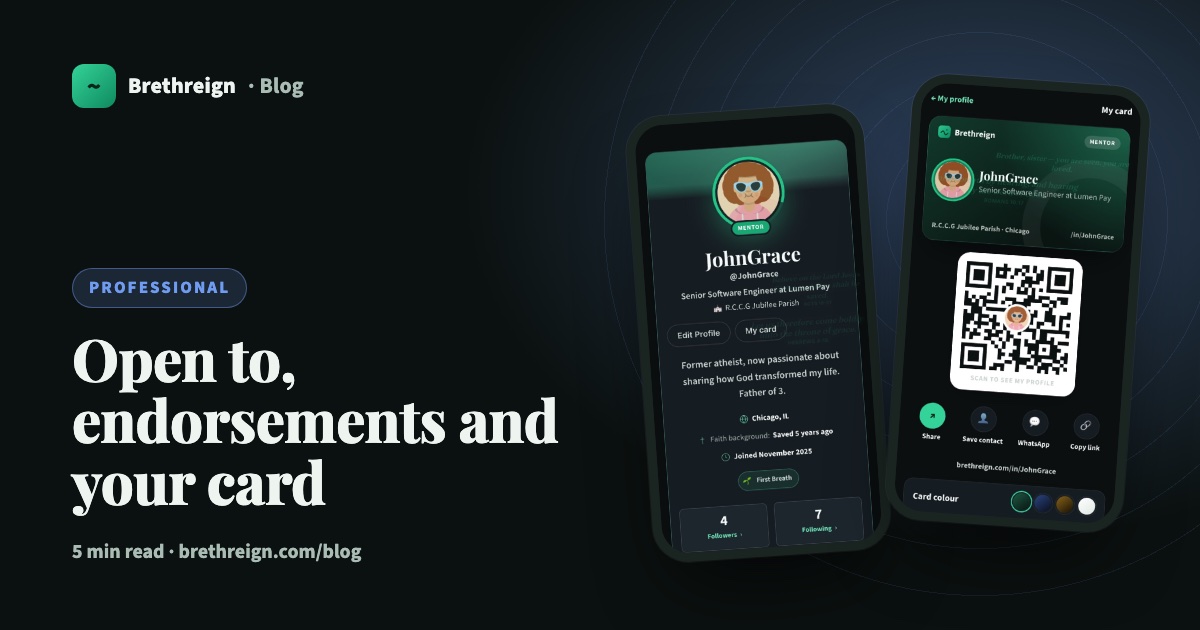
Open to, endorsements and your business card: three ways to be found
Tell people what you're open to, let your connections vouch for your skills, and share a digital business card with a QR code.
 Professional
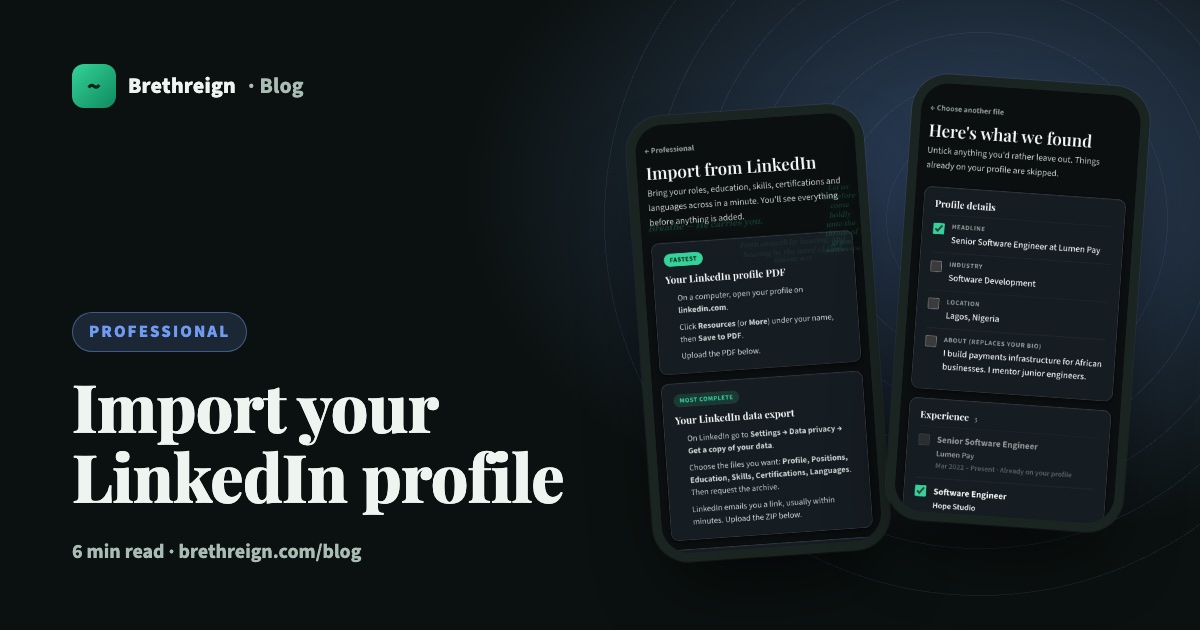
Import your LinkedIn profile into Brethreign
Bring your roles, education, skills, certifications and languages from LinkedIn to Brethreign with a PDF or data export. You check everything first.
Join Brethreign, free
A safe online home for Christians: breathe, pray, read, chat, and grow in your work.