Open to, endorsements and your business card: three ways to be found
Tell people what you're open to, let your connections vouch for your skills, and share a digital business card with a QR code.
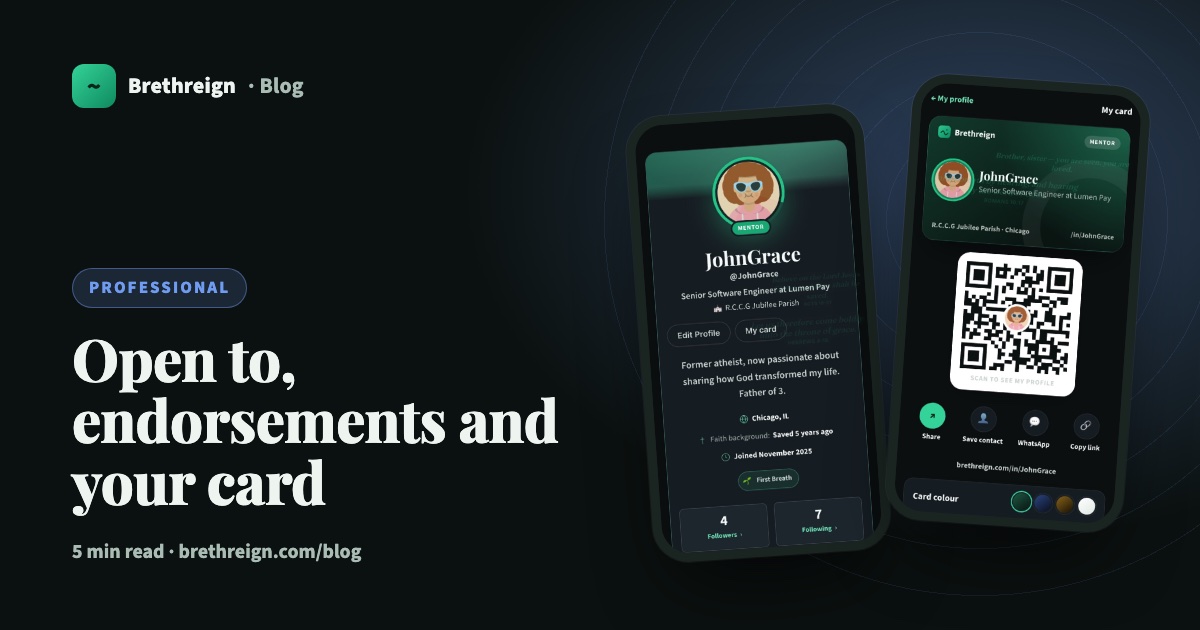
Three new features help the right people find you on Brethreign: an “Open to” badge that says what you’re looking for, endorsements that let your connections vouch for your skills, and a digital business card you can share at church or at work. This guide shows how to set up each one.
Say what you’re open to
Your profile can now say, at a glance, what you’re looking for. There are five choices:
- Hiring: you have a role to fill.
- New work: you’re looking for a job.
- Mentoring others: you’re happy to guide someone in your field.
- Freelance work: you take on projects.
- Volunteering: you’d like to serve.
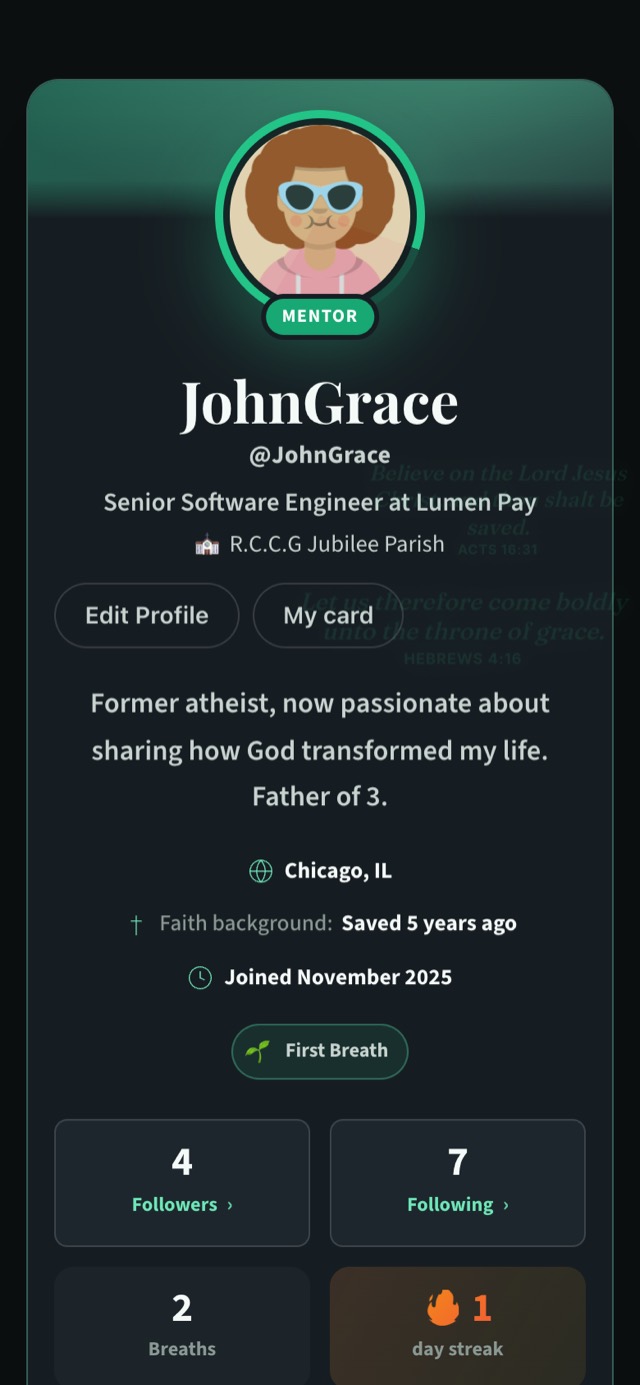
When you choose one, a coloured ring appears around your photo with a small badge underneath, such as “Mentor” or “Open to work”. The colours are gold for hiring, blue for new work, green for mentoring, coral for freelance and violet for volunteering. If you pick more than one, the first in that list colours the ring, and your profile lists them all.
How to set it up
- Open Settings → Professional. Find the Open to section.
- Tick what’s true for you. You can choose more than one.
- Choose who can see it. “Everyone on Brethreign”, or “My connections only”.
- Tap Save.
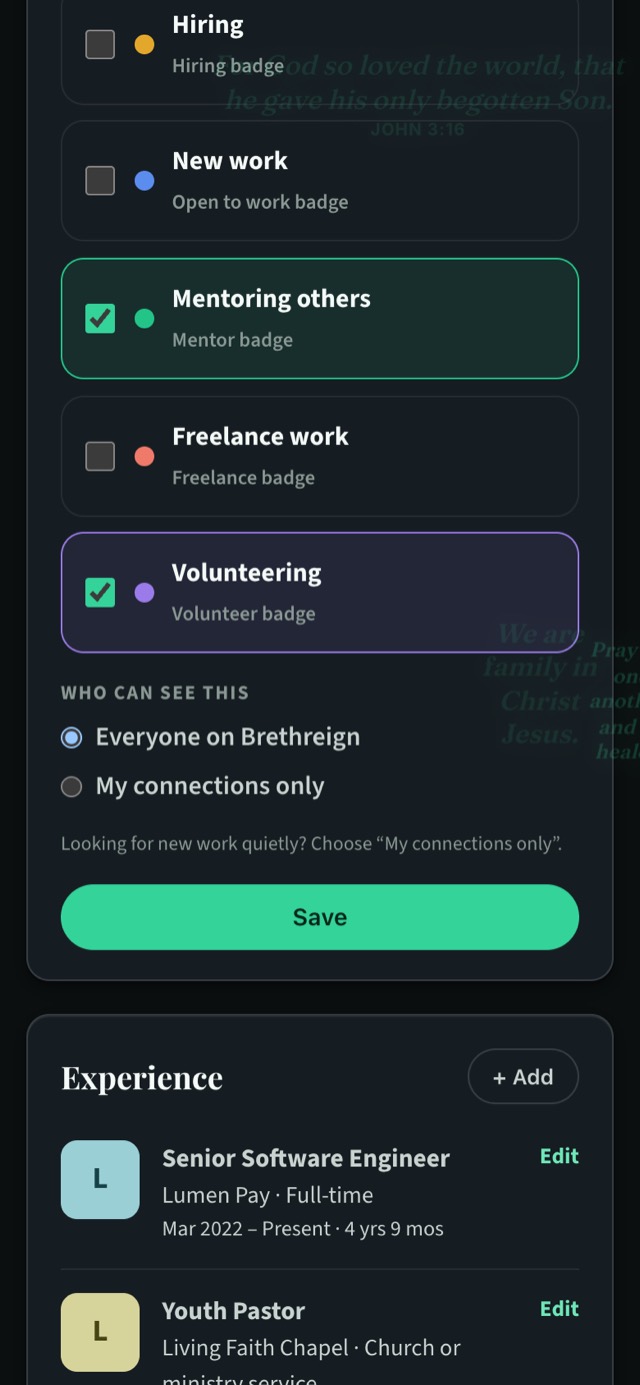
Your choices also show on “Brethren you may know” cards, so people browsing suggestions can see at a glance who is hiring, who is open to work and who is happy to mentor.
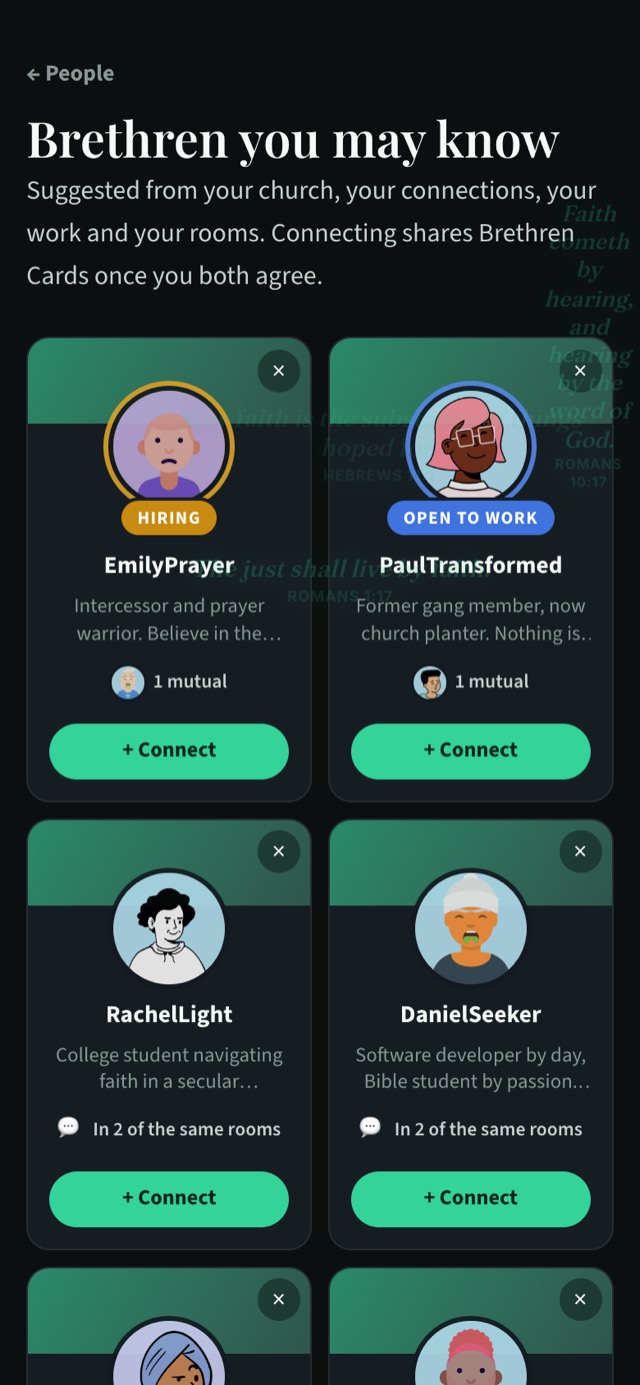
To change or remove your choices, go back to the same section, untick them and save.
Endorse the skills of people you know
An endorsement is a quick way to say “I can vouch for this”. It means more when it comes from someone who knows you, which is why only your connections can endorse your skills.
How to endorse someone
- Open the profile of someone you’re connected to.
- Tap the Professional tab and scroll to Skills.
- Tap “+ Endorse” next to a skill you’ve seen them use. It changes to “✓ Endorsed”.
If you change your mind, tap “✓ Endorsed” again to take it back. You can endorse each skill once.
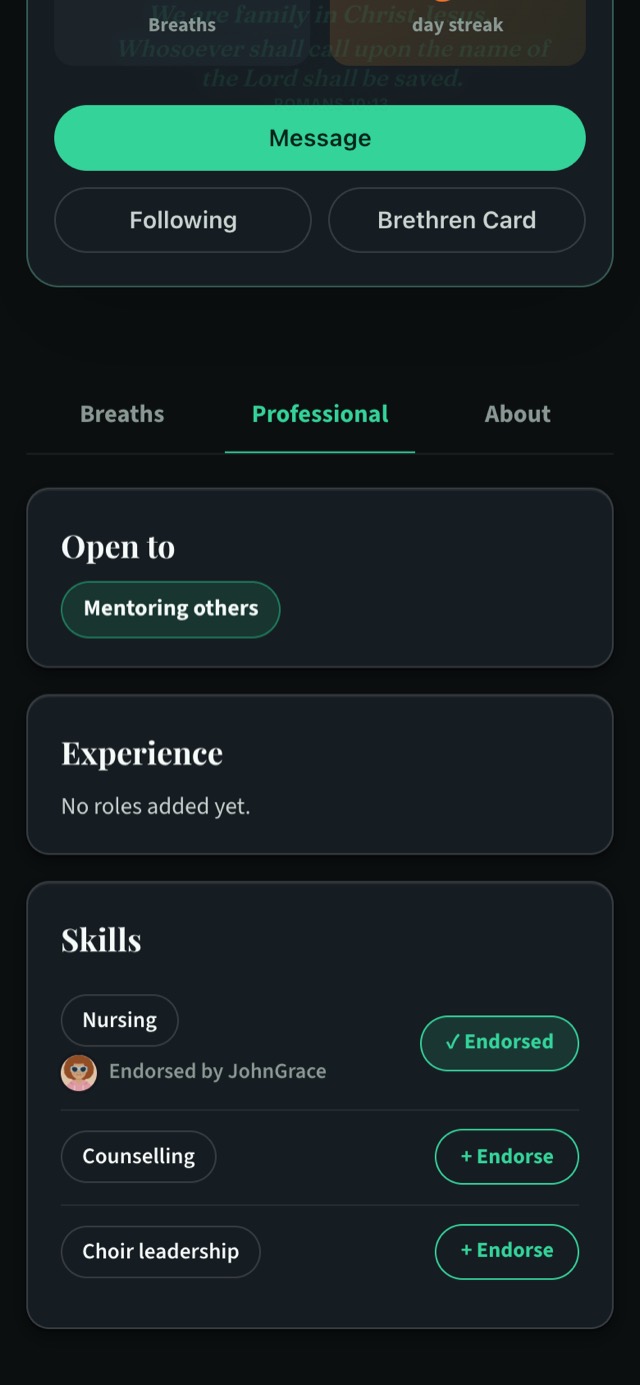
What you see on your own profile
Each skill shows who endorsed it, with their photos: “Endorsed by Maria and 3 others”, for example. Your most-endorsed skills move to the top of the list. When someone endorses you, you get an alert.
Endorsements come only from your connections, and only for skills that are on your profile. So the best way to collect them is to list the skills you really use, then connect with the people who’ve seen your work.
Your digital business card
Every member now has a business card at brethreign.com/in/yourname. Open your profile and tap My card next to Edit Profile.
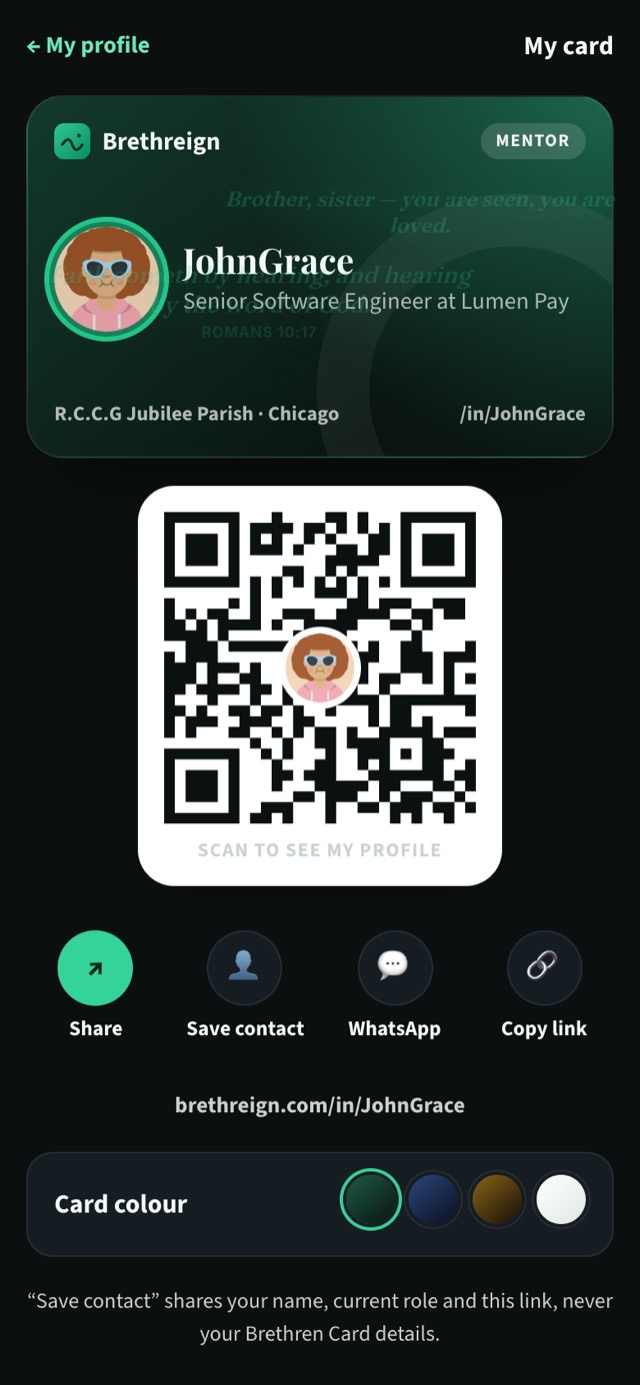
The card shows your photo, name, headline, church and city, and your “Open to” badge. Below it is a QR code. When someone scans it with their phone camera, your card opens.
Ways to share it
- Show the QR code. At church, at a conference or at an interview, let someone scan it from your screen.
- Share. Opens your phone’s share sheet, so you can send the link to any app.
- WhatsApp. Sends the link straight to a chat.
- Copy link. Copies brethreign.com/in/yourname to paste anywhere: your email signature, a CV, a social bio.
- Save contact. Adds you to the other person’s phone contacts with your name, current role and card link.
Choose your card’s colour
Under the buttons, pick a colour for your card: green, midnight blue, gold or light. It changes straight away.
What other people see
Someone who opens your card sees the card and a short summary: what you’re open to, your recent roles and your skills. If they aren’t on Brethreign yet, they’re invited to join so they can connect with you.
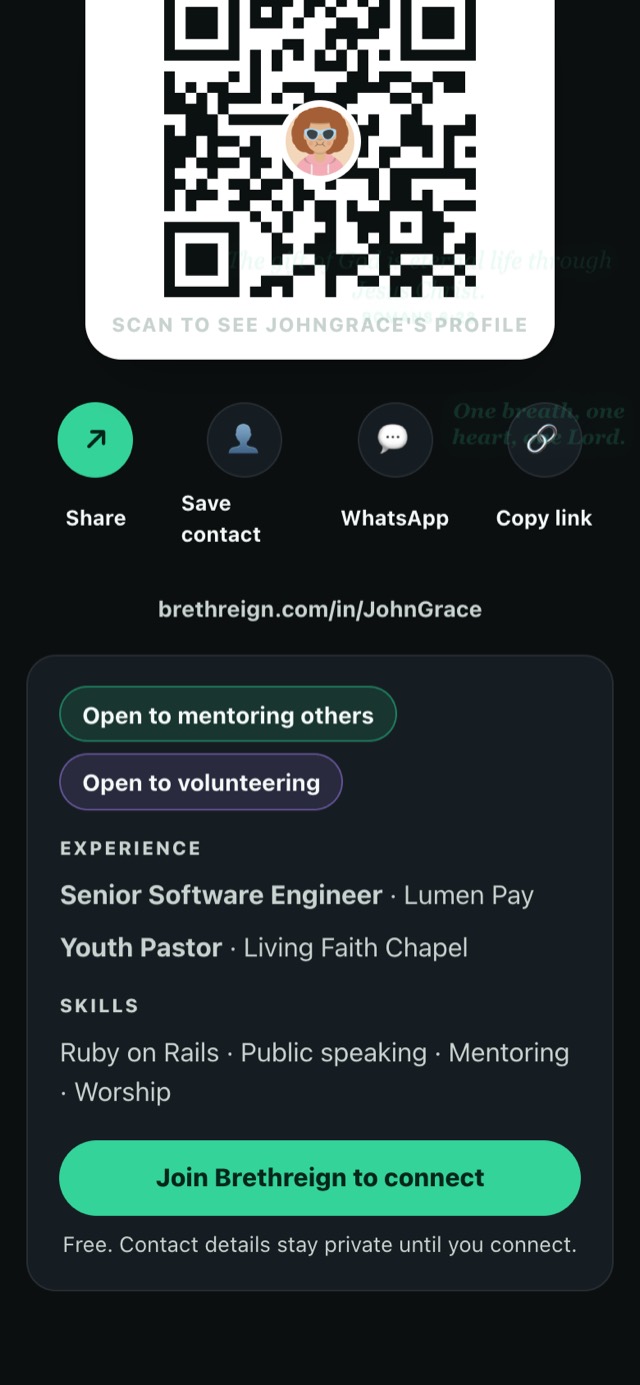
If your profile is private, your card is too: only your connections can open it. Cards aren’t listed on Google.
Keep going
Read next
 Professional
Introducing Brethreign Professional: your faith and your work in one place
Brethreign now has a professional side: a Professional tab, profile strength, LinkedIn import, Volunteering and a Portfolio for work you're proud of.
 Professional
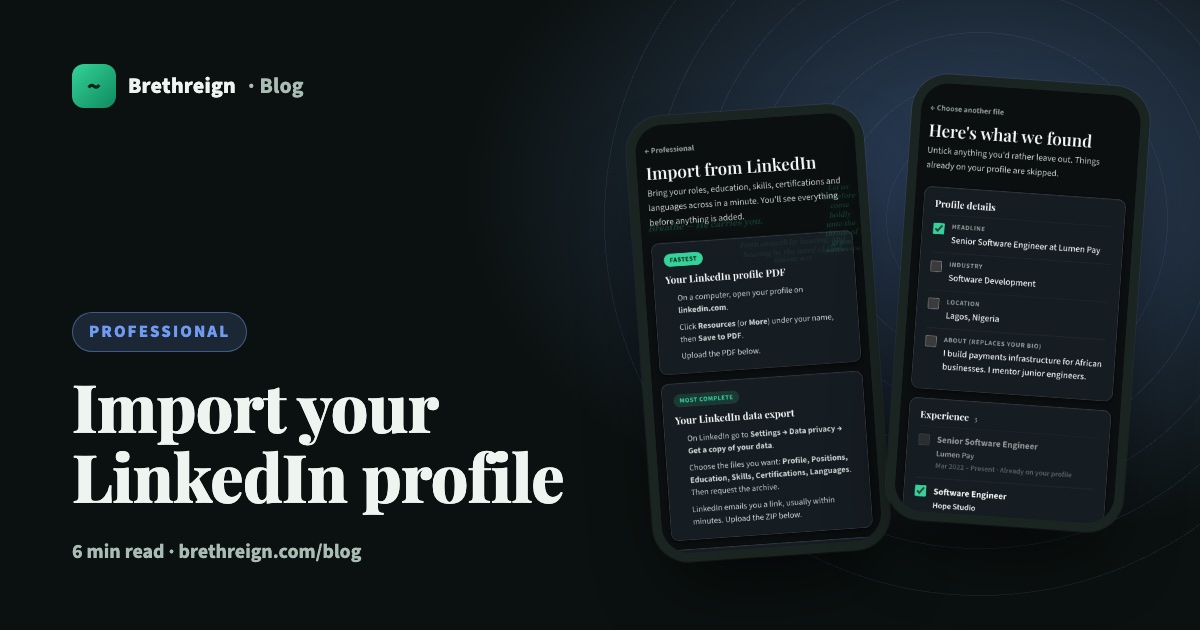
Import your LinkedIn profile into Brethreign
Bring your roles, education, skills, certifications and languages from LinkedIn to Brethreign with a PDF or data export. You check everything first.
 Professional
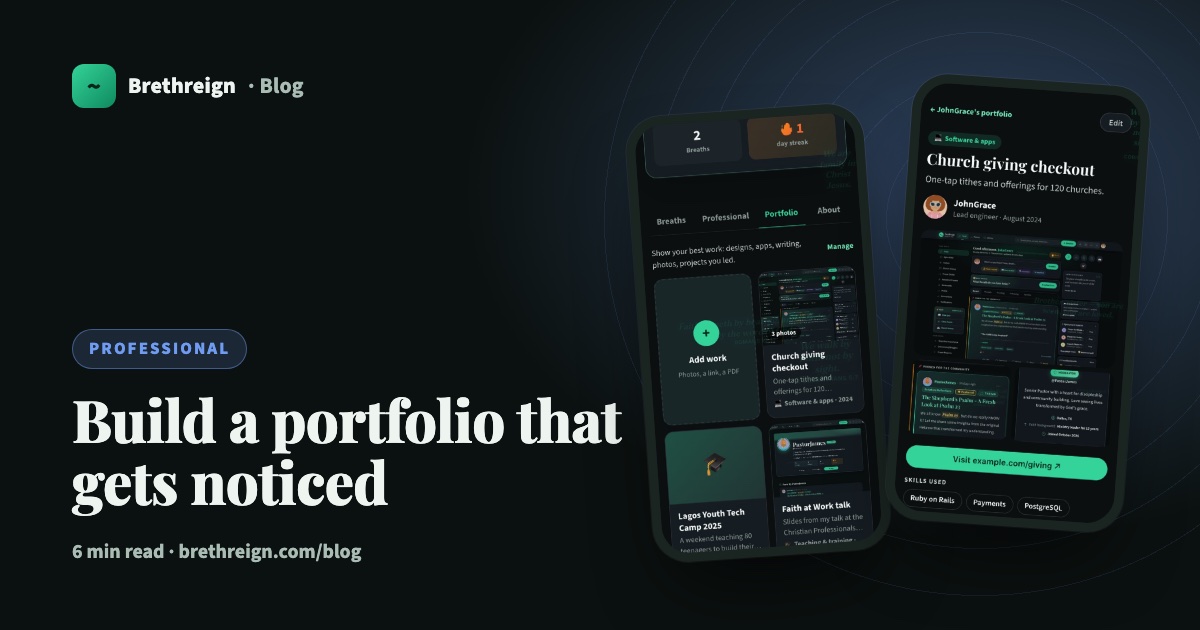
Build a portfolio that gets noticed
How to add work to your Brethreign portfolio, choose the right pieces for any job, tell the story well, and share it with people who need to see it.
Join Brethreign, free
A safe online home for Christians: breathe, pray, read, chat, and grow in your work.