Set up your professional profile in ten minutes
Step by step through Settings → Professional: headline, industry, church, skills, experience and education, with examples for every kind of job.
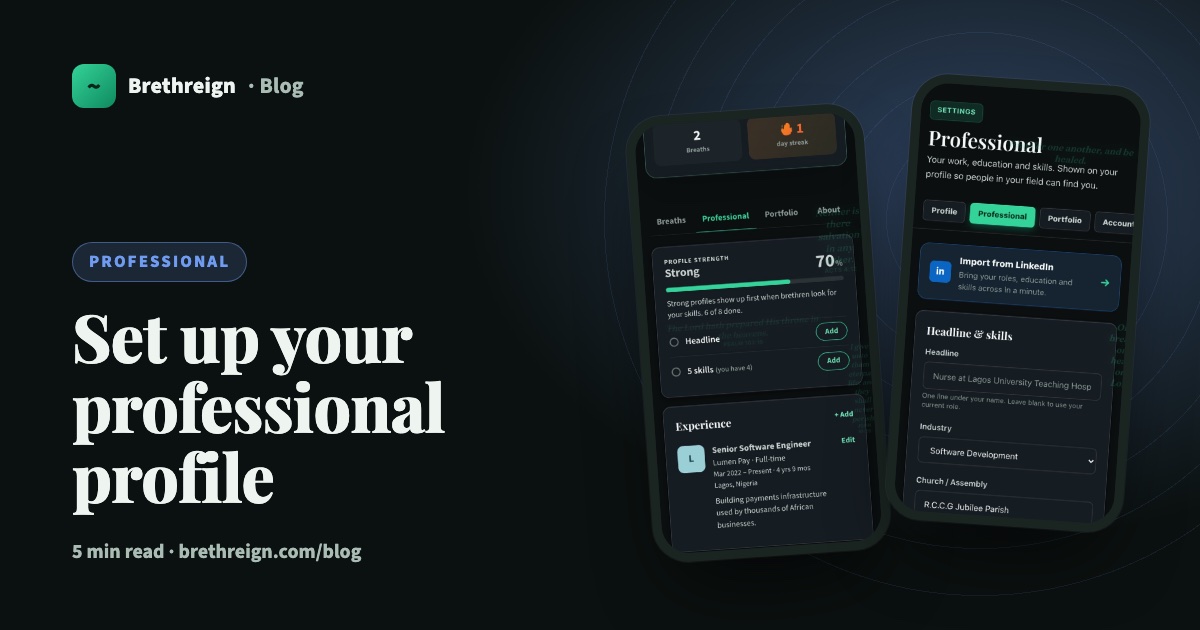
Your professional profile tells brethren what you do and where you serve. This guide walks through every field in Settings → Professional, with examples for different kinds of work, so you can finish a good profile in one sitting.
Open Settings → Professional
- Go to your settings. Open Settings → Professional. It sits between the Profile and Portfolio tabs in Settings.
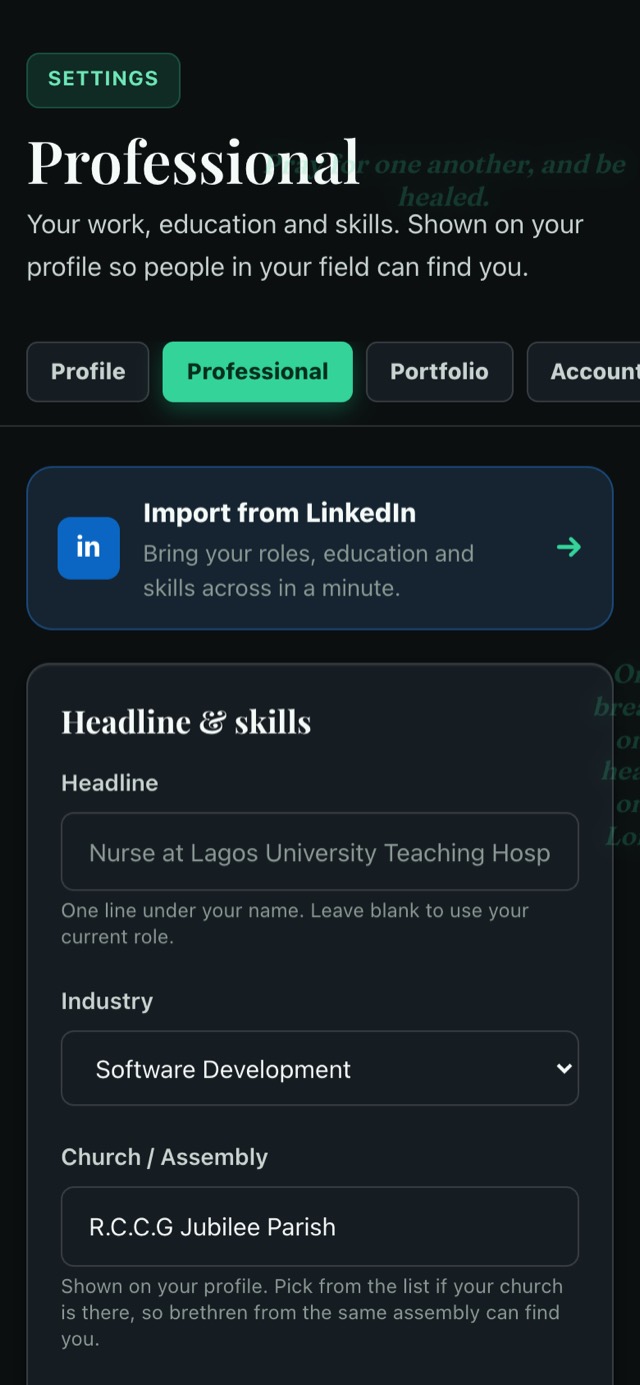
- Find “Headline & skills”. This first form holds your headline, industry, church and skills. Experience, education, certifications and languages come further down the page.
Write your headline
Your headline is the one line under your name. It’s the first thing people read on your profile, so make it clear before you make it clever. A good pattern is what you do + where, or for whom.
- Registered nurse at a teaching hospital
- Primary school teacher, Year 4
- Site engineer building affordable homes
- Accountant helping small businesses with tax and payroll
- Event planner for weddings and church conferences
- Fashion designer and tailor, made-to-measure
- Final-year student, Computer Science
- Pastor and Bible teacher
If you leave the headline blank, Brethreign uses your current role instead. That’s fine as a start, but a headline you write yourself can say more.
Choose your industry
Pick the industry closest to your work from the drop-down. The list is close to LinkedIn’s, with options such as Software Development, Healthcare & Medicine, Education and Banking. If you work across two, choose the one you’d most like people to find you under.
Pick your church or assembly
Choose your church from the list if it’s there, rather than typing it. When you and others from your assembly pick the same entry, you’re easier to find: your church is one of the things “Brethren you may know” uses to suggest people. Your church also shows on your profile.
Add your skills
Type your skills separated by commas, up to 30. Mix the specific and the broad:
- Nurse: Patient care, Wound care, Triage, Health education, Record keeping
- Teacher: Lesson planning, Classroom management, Mathematics, Mentoring
- Builder: Bricklaying, Site supervision, Reading drawings, Costing
- Software developer: Ruby on Rails, PostgreSQL, Payments, Testing
Add at least five. Five skills is one of the steps on your profile strength card, and shared skills help “Brethren you may know” suggest people in your field.
Save your changes before moving on.
Add your experience
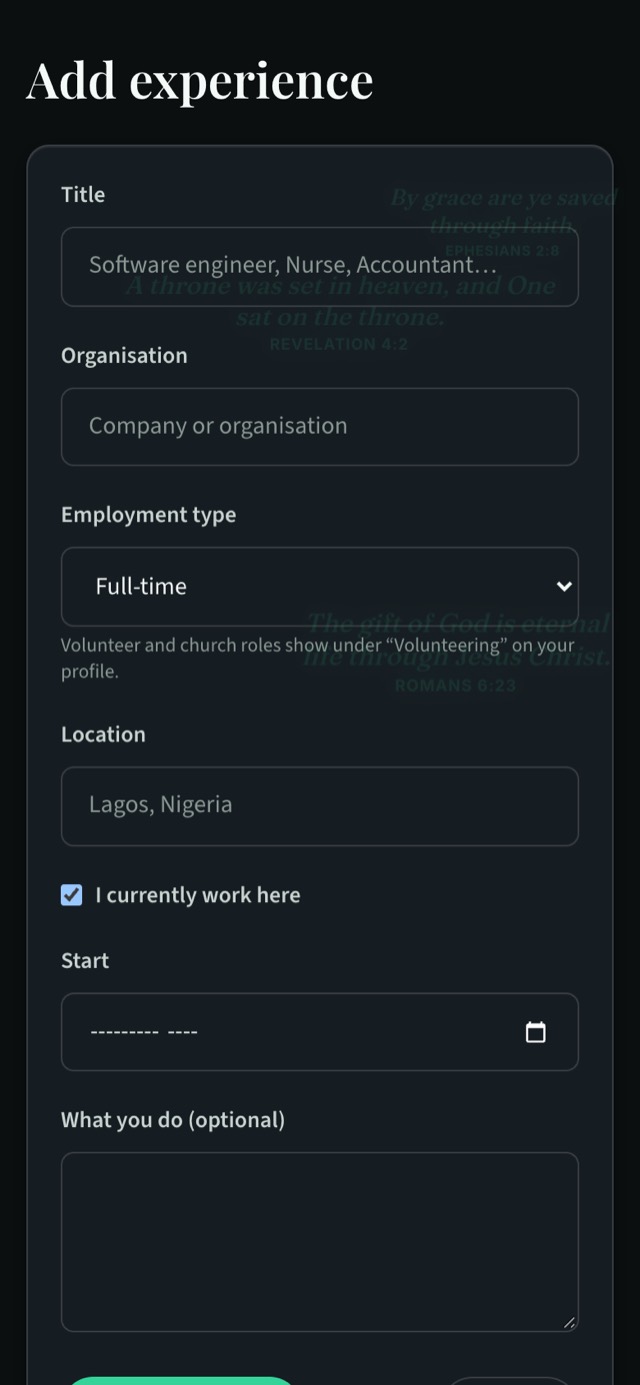
- Tap “+ Add” under Experience. You can do this in Settings → Professional or straight from your Professional tab.
- Enter your title. For example Software engineer, Nurse or Accountant.
- Enter the organisation. The company, hospital, school, business or church.
- Choose the employment type. Full-time is selected by default. The other options are Part-time, Self-employed, Freelance, Contract, Internship, Apprenticeship, Volunteer and “Church or ministry service”.
- Add the location. For example Lagos, Nigeria.
- Set the dates. Tick “I currently work here” for your present role, then pick the start month. For a past role, add the end month too.
- Describe what you do. This is optional, but two or three plain sentences help: what you’re responsible for and one thing you’re proud of.
- Save. The role appears on your Professional tab.
Church and volunteer roles
If you lead a youth group, sing in the choir, serve as an usher or volunteer with a charity, add it. Choose “Volunteer” or “Church or ministry service” as the employment type and it shows in a separate Volunteering section on your profile, while paid work stays under Experience. More on this in Volunteering and church roles.
Add your education
Under Education, tap “+ Add” and fill in:
- School: university, college, polytechnic, school or training institute
- Qualification: for example BSc, HND, Diploma or a professional certificate
- Field of study: for example Nursing or Civil Engineering
- Years: when you started and finished
Add each qualification that helps tell your story.
Check how it looks
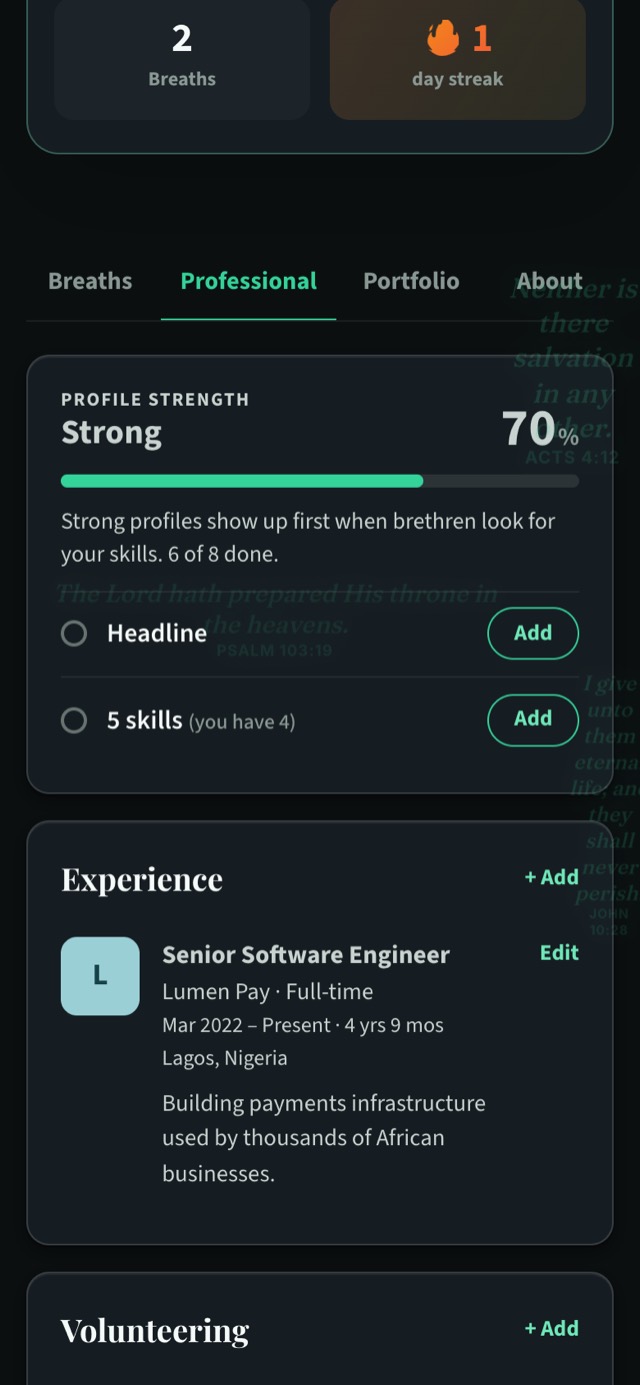
Open your profile and tap the Professional tab. You’ll see your experience, volunteering, education and skills, plus the profile strength card at the top, which only you can see.
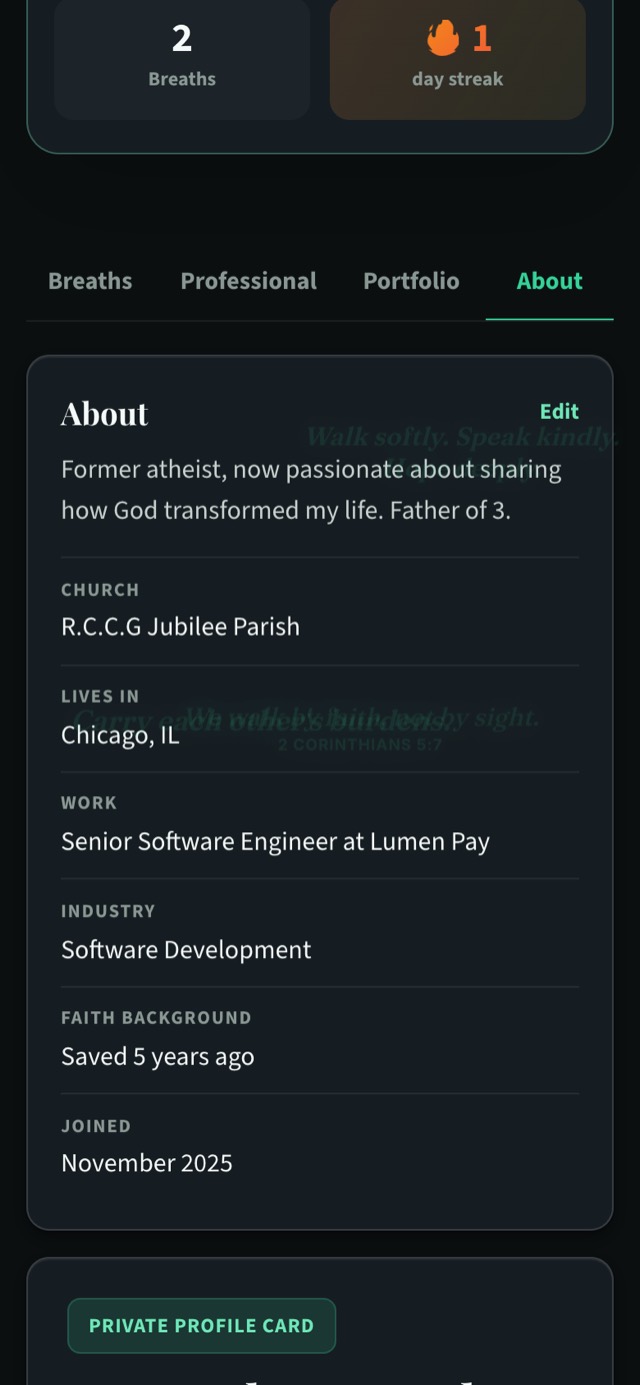
Your work, industry and church also appear on your About tab, next to your bio, city and faith background.
Keep going
Read next
 Professional
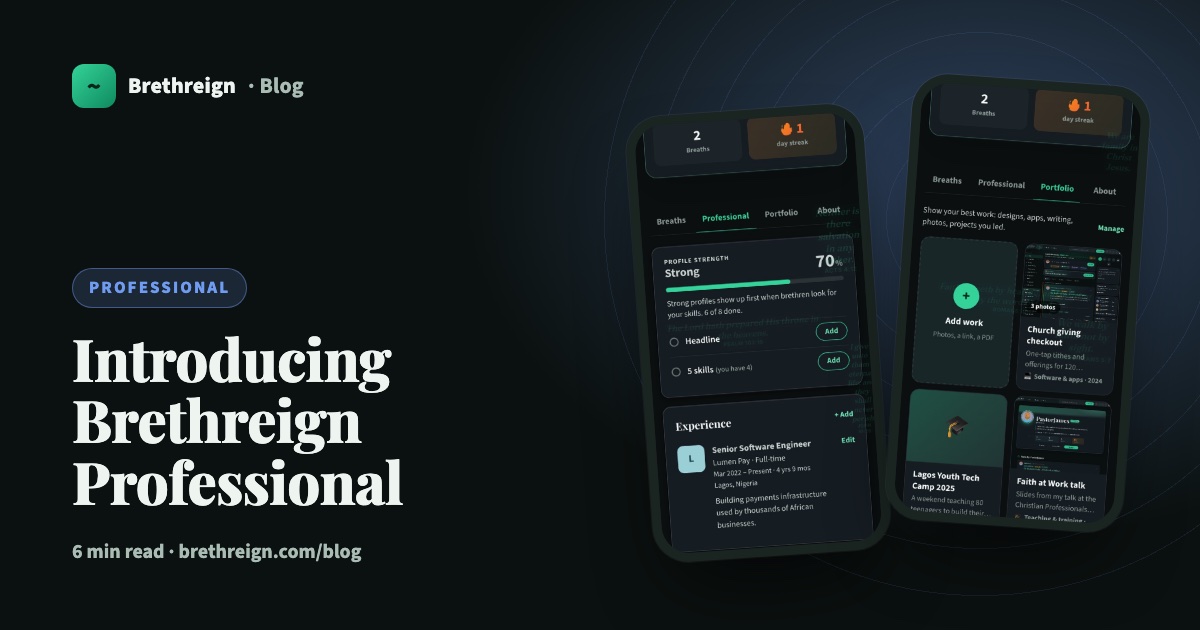
Introducing Brethreign Professional: your faith and your work in one place
Brethreign now has a professional side: a Professional tab, profile strength, LinkedIn import, Volunteering and a Portfolio for work you're proud of.
 Professional
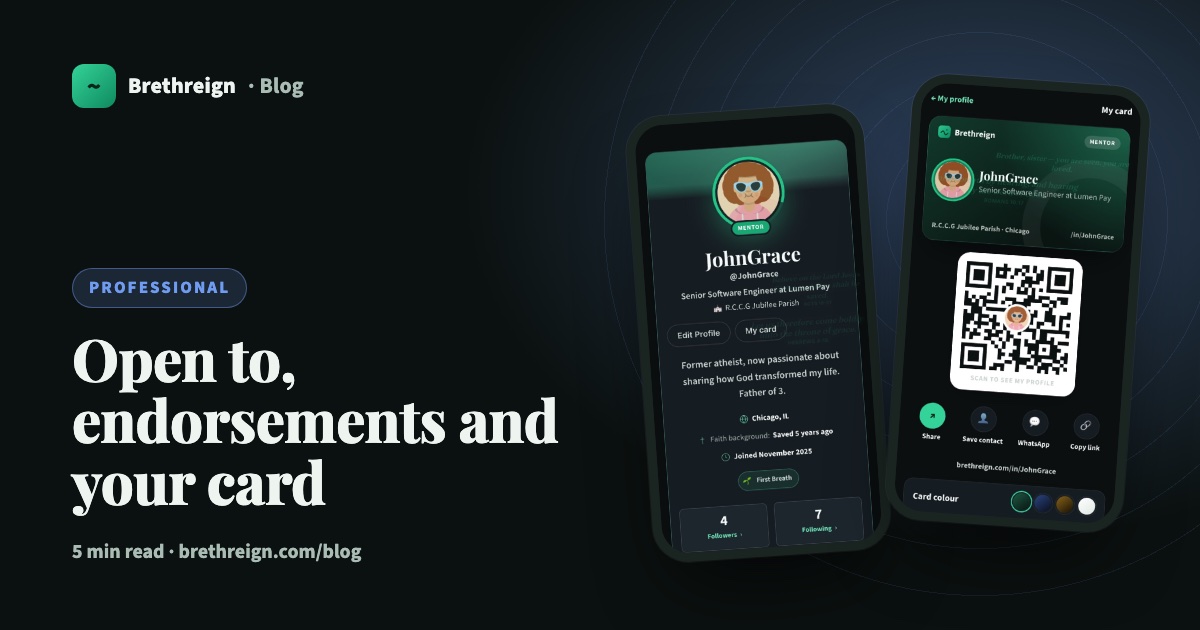
Open to, endorsements and your business card: three ways to be found
Tell people what you're open to, let your connections vouch for your skills, and share a digital business card with a QR code.
 Professional
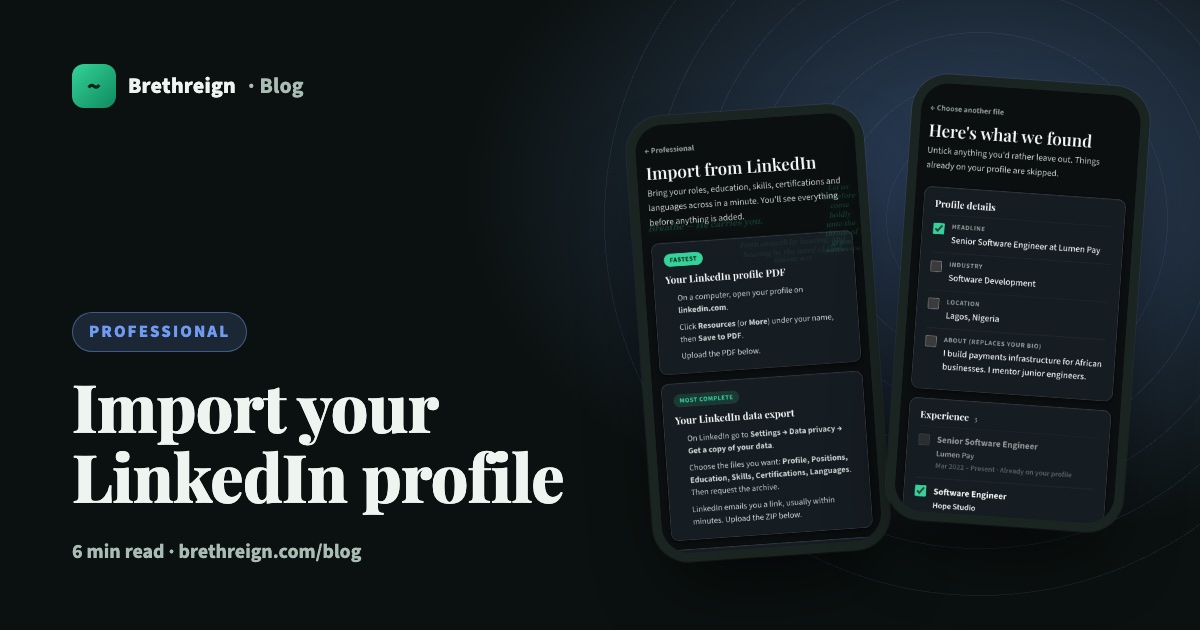
Import your LinkedIn profile into Brethreign
Bring your roles, education, skills, certifications and languages from LinkedIn to Brethreign with a PDF or data export. You check everything first.
Join Brethreign, free
A safe online home for Christians: breathe, pray, read, chat, and grow in your work.