Import your LinkedIn profile into Brethreign
Bring your roles, education, skills, certifications and languages from LinkedIn to Brethreign with a PDF or data export. You check everything first.
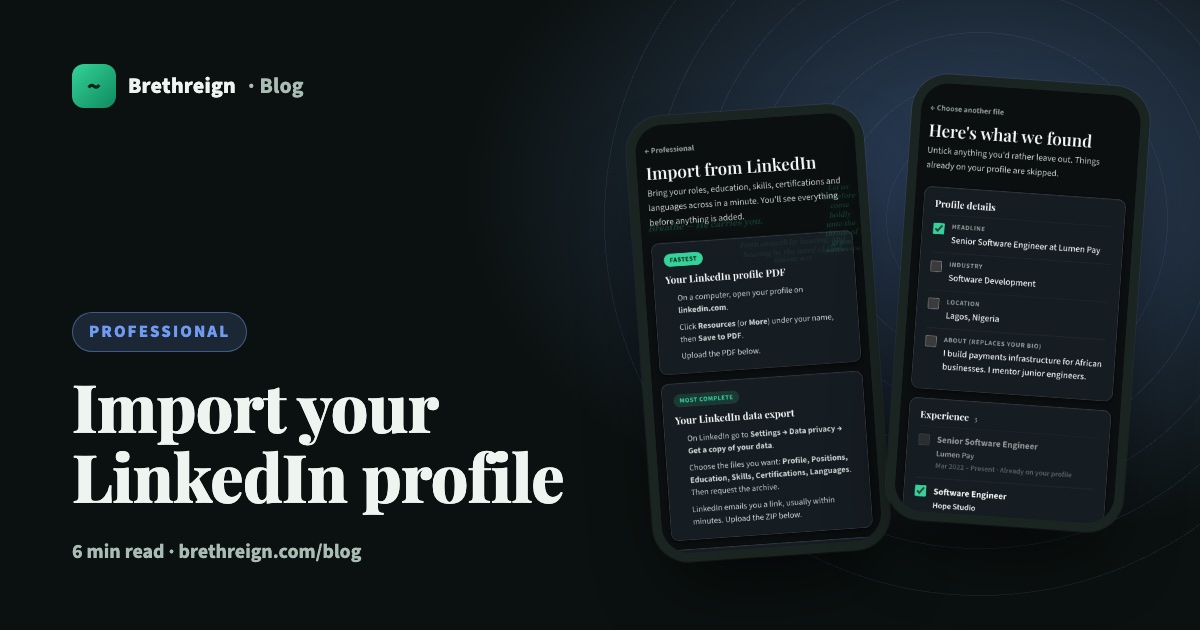
If you have spent years building a LinkedIn profile, you shouldn’t have to type it all out again. This guide shows both ways to bring it into Brethreign, what the review page does, what happens to your file, and what to try if something doesn’t come through.
Why you upload a file
LinkedIn doesn’t let other apps read your work history. So instead of signing in with LinkedIn, you download a file from LinkedIn and upload it to Brethreign. It takes a few minutes, and you see everything before anything is added.
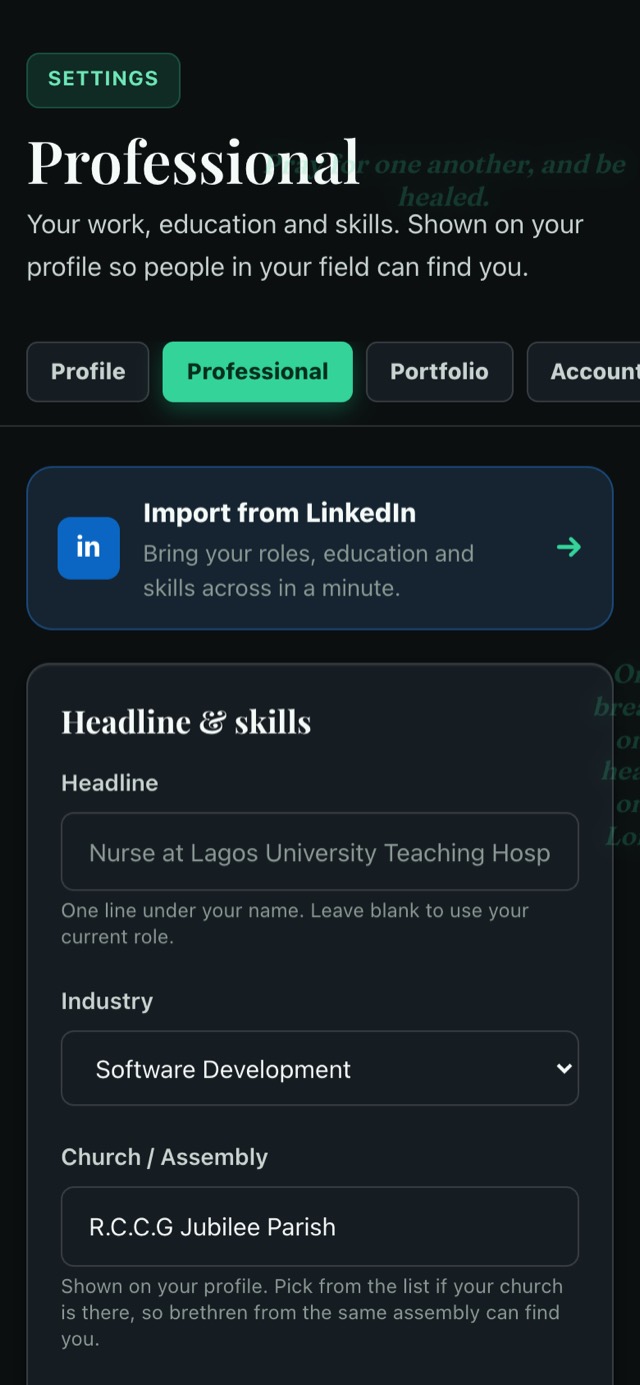
To begin, open Settings → Professional and tap the Import from LinkedIn banner at the top. You can also go straight to the import page.
The import page offers two routes. Choose one.
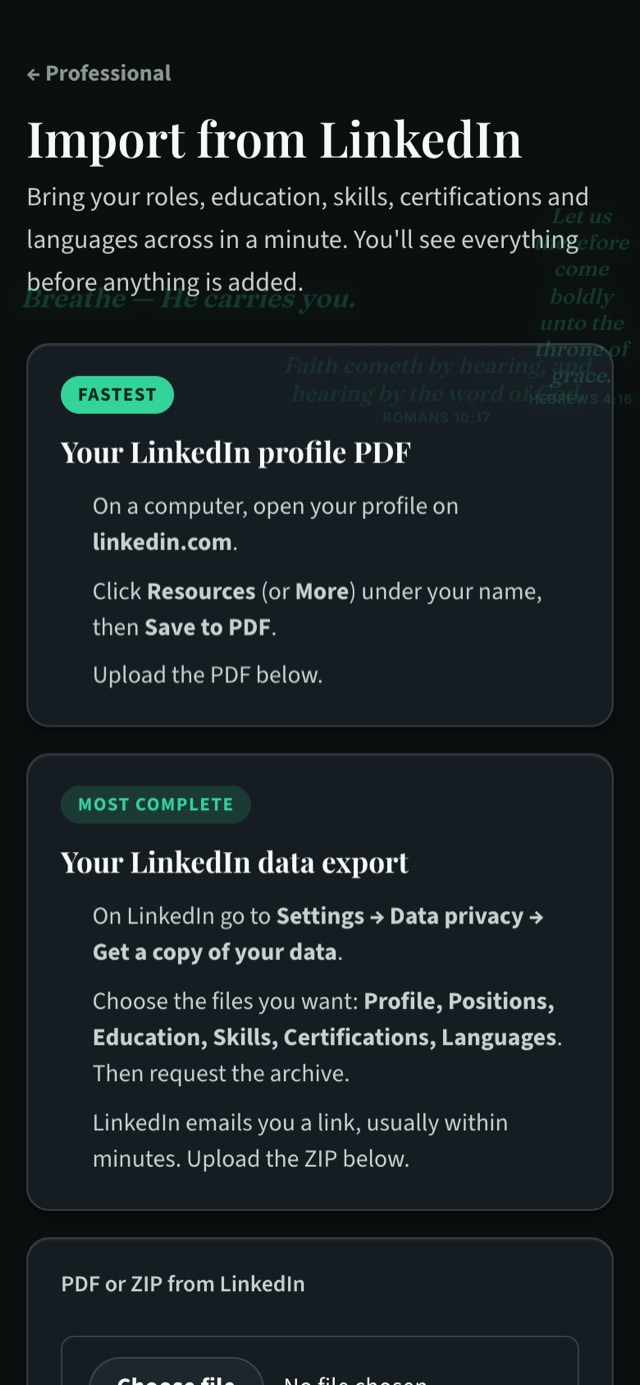
Route 1: your LinkedIn profile PDF (fastest)
This works well if you just want your main details across quickly. You’ll need a computer for the first part, because the option is on LinkedIn’s website.
- Open your LinkedIn profile. On a computer, go to linkedin.com and open your own profile.
- Save it as a PDF. Click Resources (on some accounts it’s More) under your name, then Save to PDF. LinkedIn downloads the file.
- Upload it to Brethreign. On the Brethreign import page, choose the PDF in the “PDF or ZIP from LinkedIn” box and upload it.
A PDF is read with the help of Brethreign’s AI service, which picks out your roles, schools and other details.
Route 2: your LinkedIn data export (most complete)
The data export is a ZIP file of your LinkedIn information. It takes a little longer to arrive, but it brings across the most detail.
- Open LinkedIn settings. On LinkedIn, go to Settings → Data privacy → Get a copy of your data.
- Pick the files you want. Choose Profile, Positions, Education, Skills, Certifications and Languages, then request the archive.
- Wait for LinkedIn’s email. LinkedIn emails you a download link, usually within minutes.
- Download the ZIP. Save it without unzipping it.
- Upload it to Brethreign. Choose the ZIP on the import page and upload it.
The review page: “Here’s what we found”
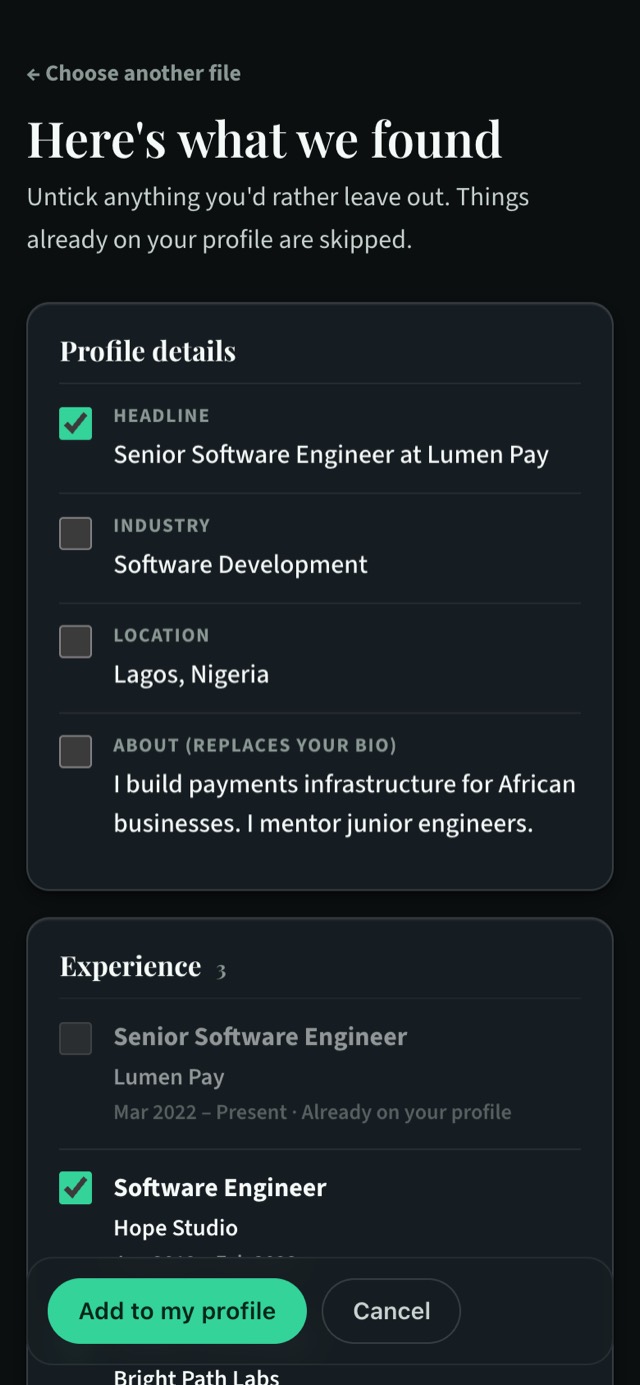
Nothing is added to your profile straight away. Brethreign first shows a page called Here’s what we found, grouped into sections:
- Profile details: headline, industry, location and about
- Experience
- Education
- Licenses & certifications
- Languages
- Skills
Each item has a tick box. Untick anything you’d rather leave out.
A few things happen automatically to protect what you already have:
- Items already on your profile are greyed out and skipped. You won’t end up with the same job twice.
- Headline, industry, location and bio are only pre-ticked if yours is empty. If you’ve already written a headline on Brethreign, it stays unticked so the LinkedIn one doesn’t replace it. You can still tick it yourself if you prefer LinkedIn’s version.
- The LinkedIn “about” replaces your bio if you tick it, so read it first. Your Brethreign bio may say things about your faith that your LinkedIn summary doesn’t.
When you’re happy, tap Add to my profile. You’ll see a short summary such as “Imported from LinkedIn: 3 roles, 1 school, 2 skills”, and the items appear on your Professional tab.
What happens to your file
The file is read once and not kept. Brethreign takes the details you ticked and adds them to your profile; the PDF or ZIP itself is not stored.
After importing
An import gives you a strong starting point. A few minutes of tidying makes it yours.
- Check your church roles. If you served as a youth leader, worship leader or volunteer, edit that role and set the employment type to “Volunteer” or “Church or ministry service”. It will then show under Volunteering instead of Experience.
- Pick your church. LinkedIn doesn’t know your assembly. Choose it in Settings → Professional so brethren from the same church can find you.
- Look at profile strength. The card at the top of your Professional tab shows what’s still missing. See Reach All-star profile strength.
Troubleshooting
“Nothing found” from my PDF. Try the data export instead. It is the most complete of the two routes.
A role I expected wasn’t added. If it was greyed out on the review page, it was already on your profile and was skipped on purpose. If it wasn’t listed at all, try the data export and make sure you picked Positions when you requested it.
My headline didn’t change. Headline, industry, location and bio are only pre-ticked when yours is empty. Run the import again and tick the headline yourself, or edit it in Settings → Professional.
I can’t find “Save to PDF” on my phone. That option is on LinkedIn’s website, so use a computer. Or use the data export, which you request from LinkedIn’s settings.
My file won’t upload. Check it is the PDF or ZIP from LinkedIn and that it is under 30 MB. Upload the ZIP as it arrived, without unzipping it.
Keep going
Read next
 Professional
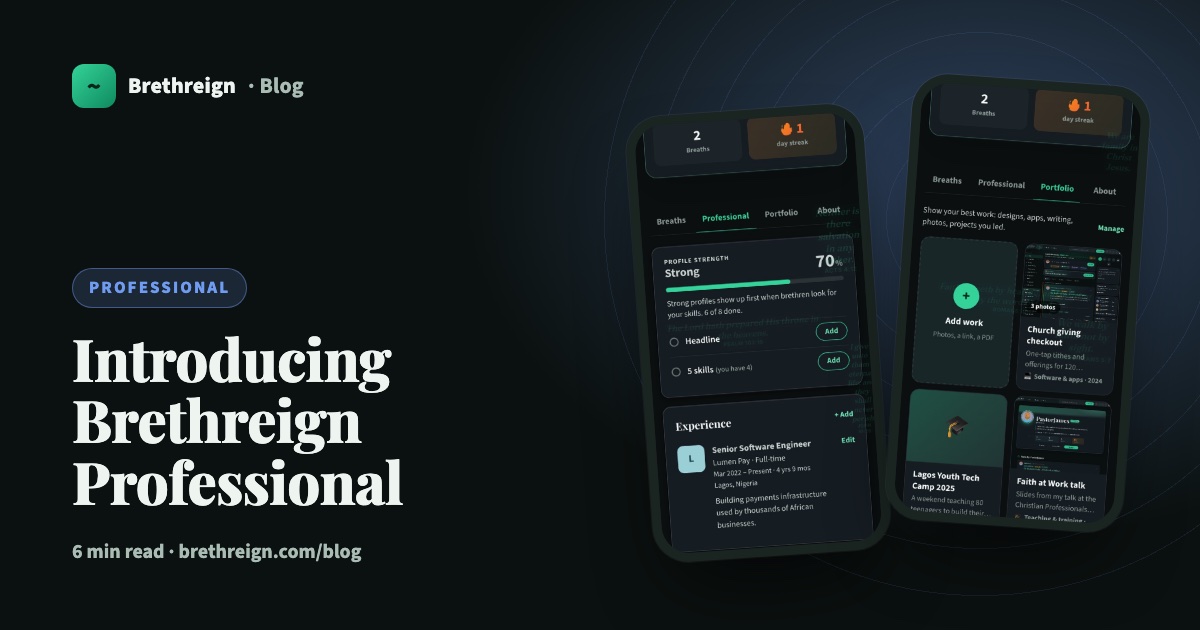
Introducing Brethreign Professional: your faith and your work in one place
Brethreign now has a professional side: a Professional tab, profile strength, LinkedIn import, Volunteering and a Portfolio for work you're proud of.
 Professional
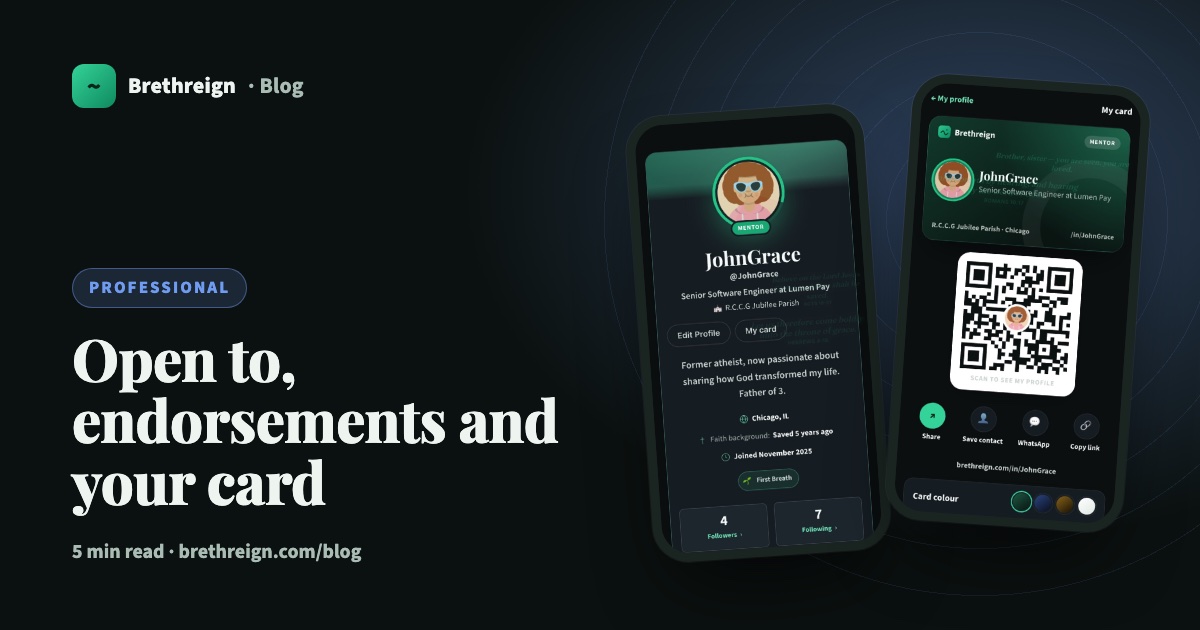
Open to, endorsements and your business card: three ways to be found
Tell people what you're open to, let your connections vouch for your skills, and share a digital business card with a QR code.
 Professional
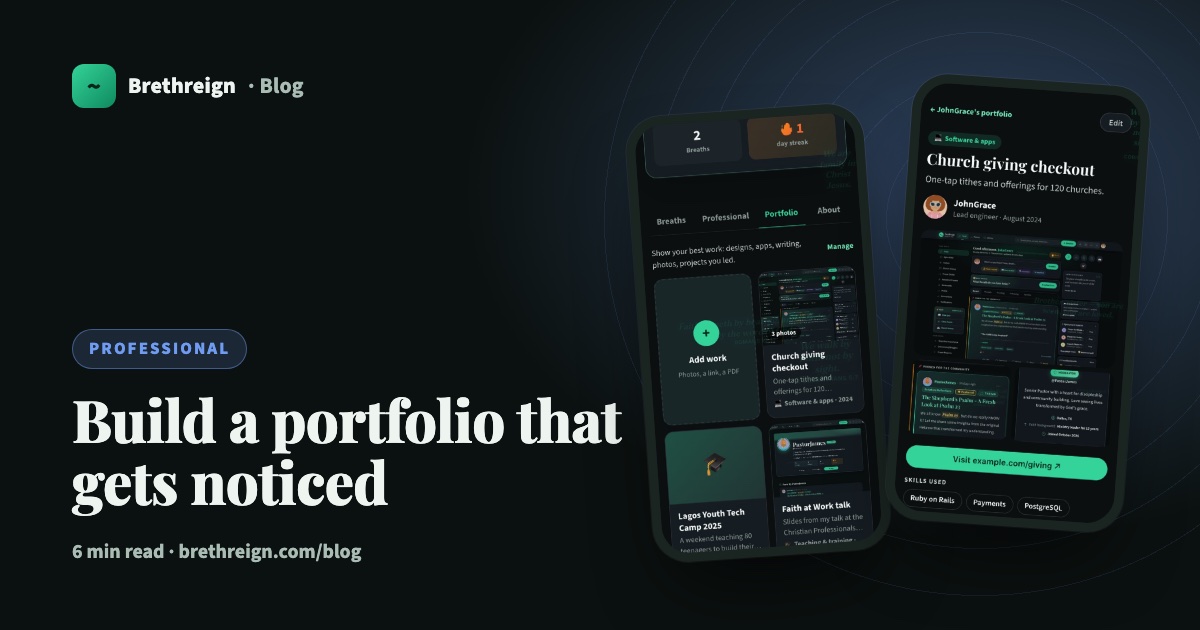
Build a portfolio that gets noticed
How to add work to your Brethreign portfolio, choose the right pieces for any job, tell the story well, and share it with people who need to see it.
Join Brethreign, free
A safe online home for Christians: breathe, pray, read, chat, and grow in your work.