Private chats on Brethreign: a practical guide
How to chat one-to-one on Brethreign: photos, voice notes, documents, verses, replies, forwarding, and the tools that keep chats kind and safe.
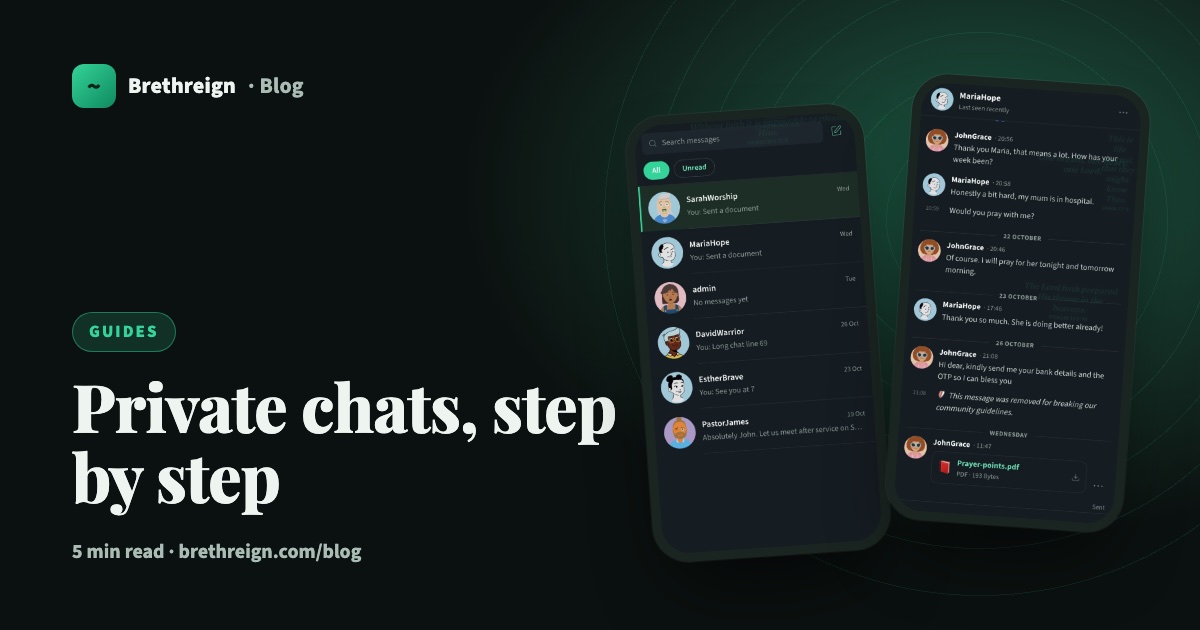
Some conversations belong in the feed. Others are just between two people: a prayer you would rather not post, a document for your cell group, a quick “see you at 7”. This guide walks through everything you can do in a Brethreign chat, from your first message to the tools that keep it safe.
Your Inbox
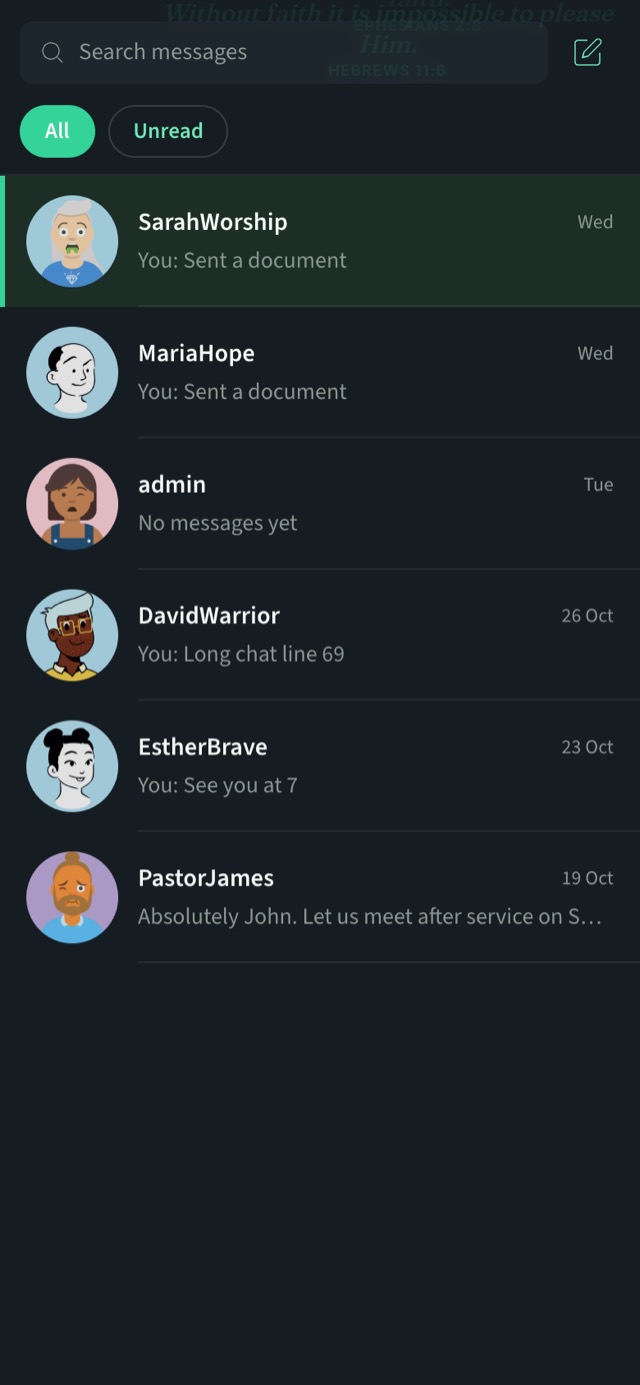
Every private conversation lives in your Inbox. Chats are listed with the newest at the top, each with a short preview of the last message and when it was sent. Two chips at the top, All and Unread, let you see everything or only the conversations waiting for you, and the search box finds an old message when you need it.
Start a chat and send your first message
- Open your Inbox. Tap the pen icon beside the search box to start a new conversation, or open an existing chat from the list.
- Write your message. Type in the “Write a message…” box at the bottom.
- Add an emoji if you like. The emoji picker stays open while you choose, so you can add several in a row.
- Send it. Tap Send. On a computer, press Enter to send and Shift+Enter to start a new line.
Photos, voice notes and documents
Under the message box you will find a row of buttons: photo, document, emoji, Bible and voice.
- Photos. Tap the photo button and pick a picture. On a computer you can also paste an image straight into the message box.
- Voice notes. Tap the microphone and speak. A voice note is often kinder than a long typed message, especially when someone is going through a hard week.
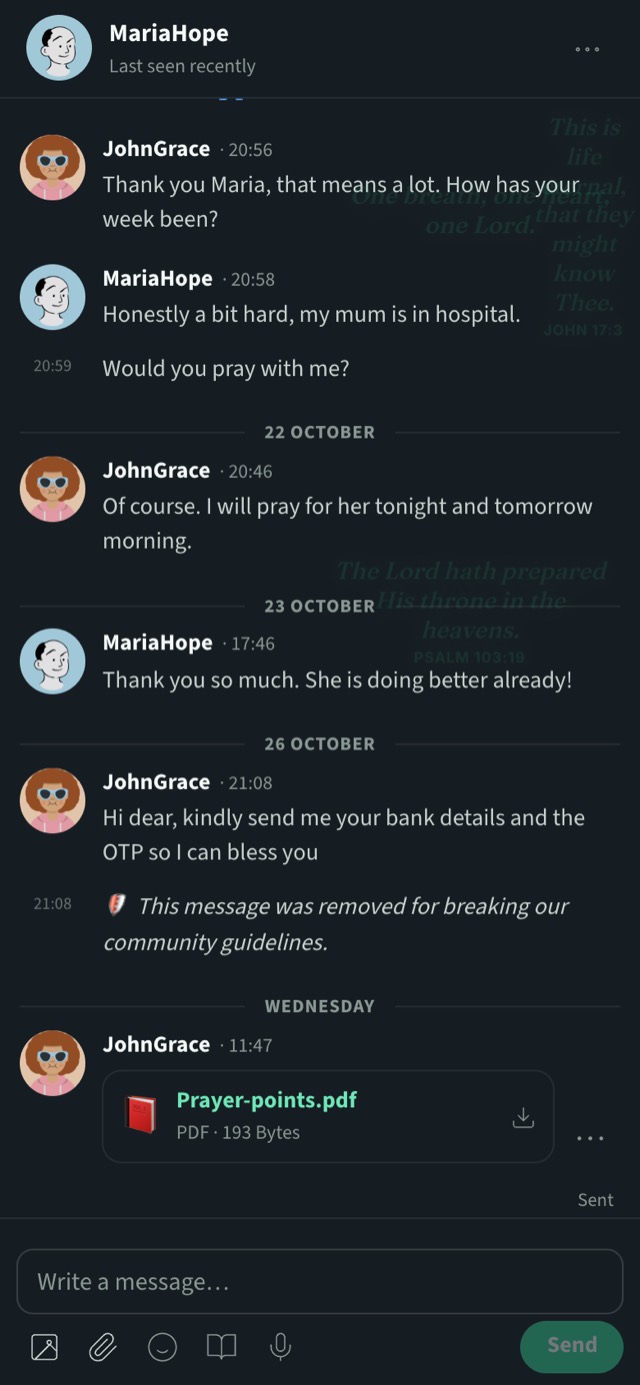
- Documents. Tap the paperclip to attach PDF, Word, Excel, PowerPoint, plain text or e-book files. You can send up to 3 documents in one message, each up to 10 MB. That is handy for prayer points, a study outline or the programme for Sunday.
When someone sends you a photo, tap it to open it full screen. From there you can Save it to your device.
Share a Bible verse
Tap the book icon to open the Bible and pick a verse to send. Sometimes the right verse says more than a paragraph of encouragement.
Reply, forward and share
Conversations move quickly. These tools keep things clear.
- Reply to a specific message. Choose Reply on a message and your answer is linked to it, so the other person knows exactly what you are responding to.
- Forward a message. Choose Forward and pick up to 5 chats to send it to. Forwarded messages are marked Forwarded, so nobody mistakes them for something you wrote yourself.
- Share outside Brethreign. Choose Share to send a message on through WhatsApp or another app on your phone.
The kindness check
We all type things we would never say face to face. If a message you are about to send comes across as harsh, Brethreign may offer you softer wording before it goes. You stay in charge: you can take the suggestion or send your own words. It is a small pause that can protect a friendship.
A soft answer turneth away wrath: but grievous words stir up anger. (Proverbs 15:1)
How chats are kept safe
Private does not mean unprotected. Brethreign’s AI checks chats for abuse, explicit content and scams.
- Scam guard. Messages about money, bank details or codes trigger a warning, so you have a moment to stop and think.
- Removed messages. A message that breaks the community guidelines is removed and shown as “This message was removed for breaking our community guidelines”. You can see an example in the screenshot above, where a request for bank details and an OTP was taken down.
- Reporting. You can report anything in one tap, and our moderators, who are real people, review it.
There are also no ads in your chats.
Blocking someone
If someone keeps messaging you and you would like them to stop, you can block them from messaging you. You do not owe anyone an explanation. Blocking is there so that your Inbox stays a peaceful place.
Keep going
Read next
 Guides
Your profile tabs, explained
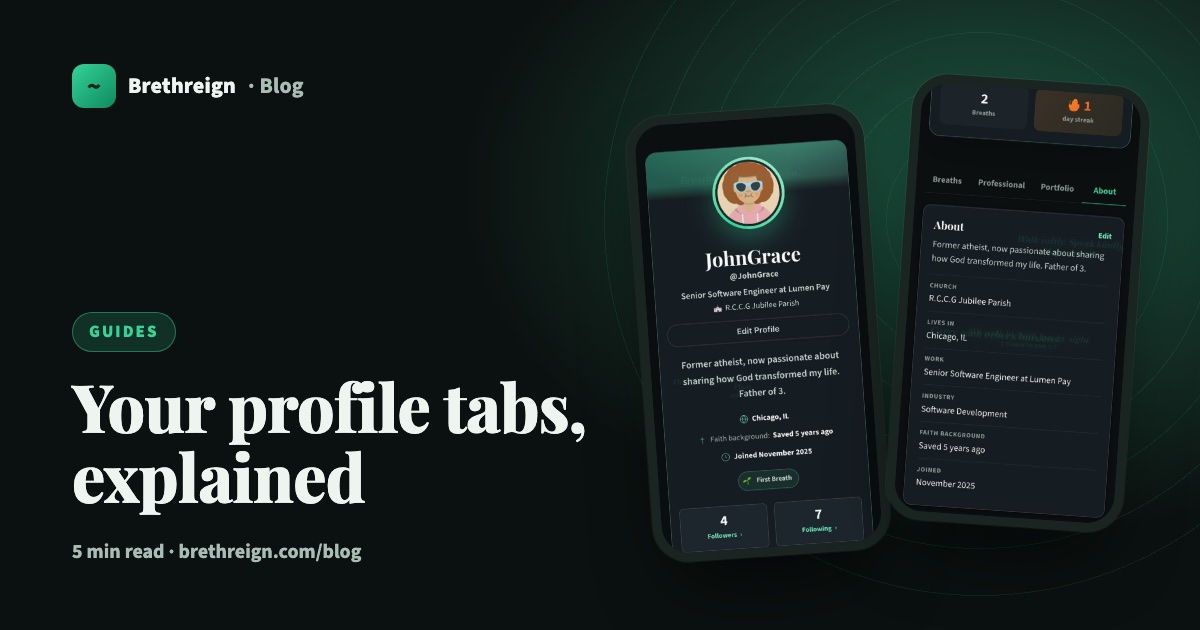
A tour of the Breaths, Professional, Portfolio and About tabs on your Brethreign profile: what visitors see, what only you see, and how privacy works.
 Guides
Getting started on Brethreign: your first ten minutes
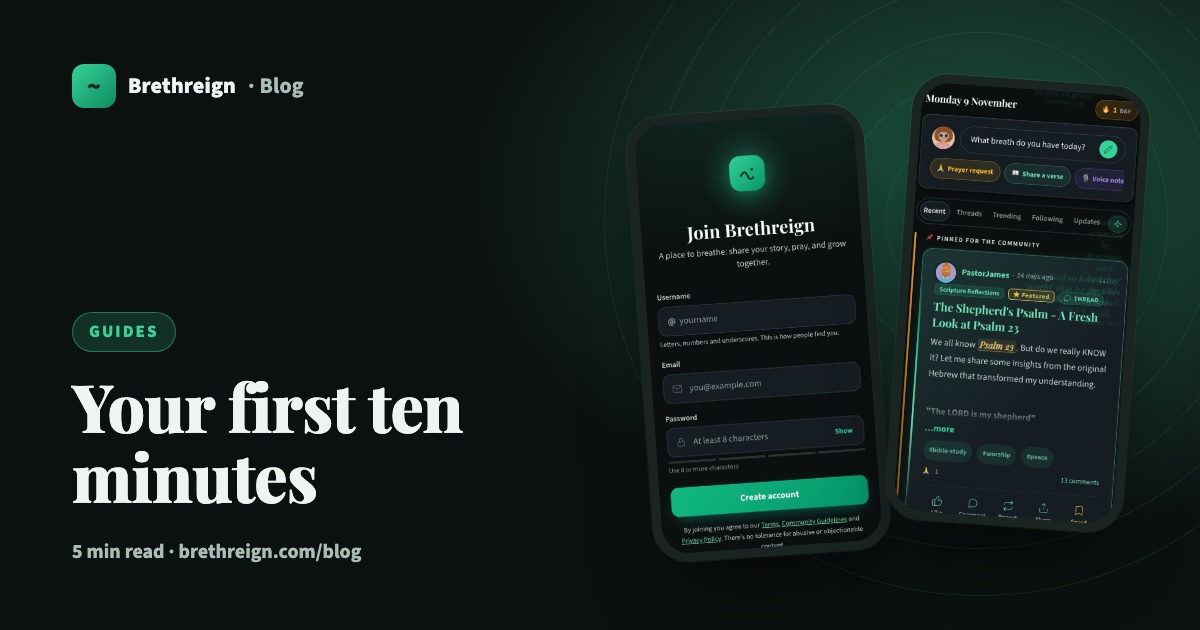
Sign up, set up your profile and Brethren Card, find people and rooms, and take your first breath. A step-by-step guide for new members.
 Guides
Take your first breath: a guide to posting on Brethreign
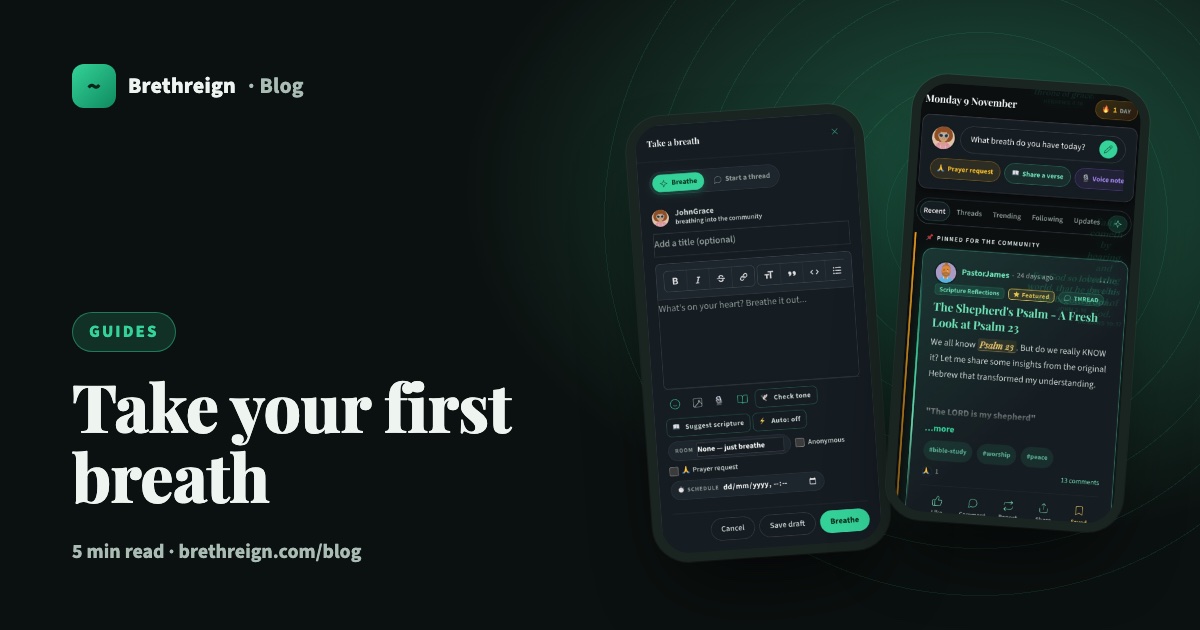
Everything the Brethreign composer can do, from photos and voice notes to Check tone, drafts and scheduling, plus how to use the feed.
Join Brethreign, free
A safe online home for Christians: breathe, pray, read, chat, and grow in your work.